
Things I want to do
This will record your Windows screen.
While this can be done using apps like OBS, I’ll show you how to do it easily using a Windows 11 feature.
recording
Activate the app you want to record and press the Win+G keys.
The following GUI will be displayed.
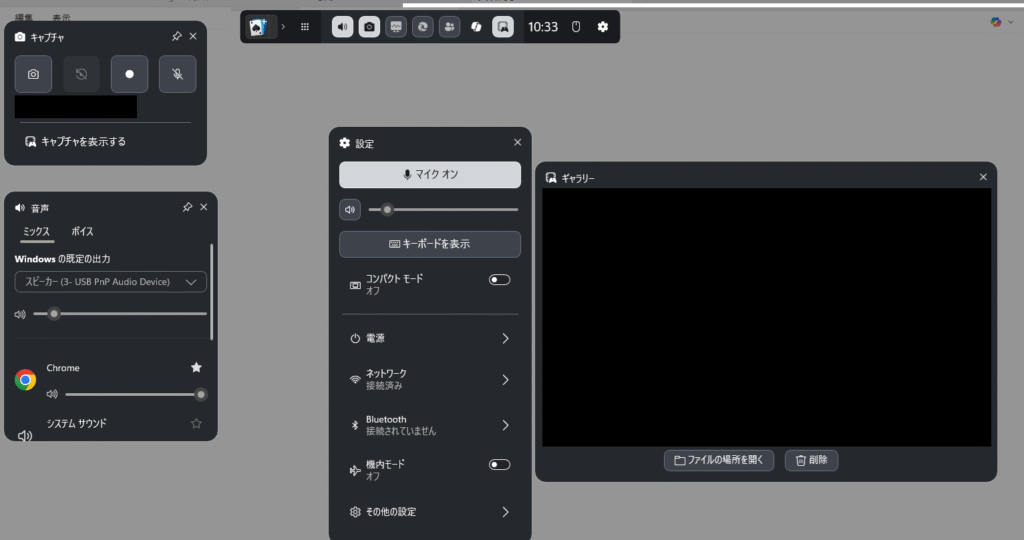
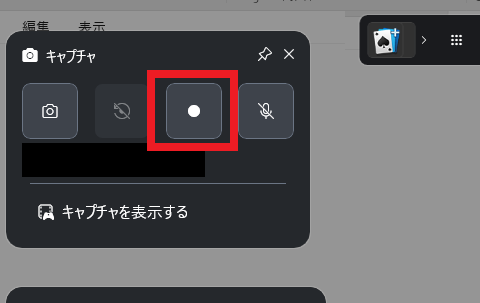
Click the circle icon in the upper left corner to start recording.
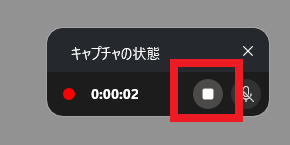
When you start recording, the following GUI will appear in the upper right corner.
Clicking the square will stop the recording.
Hide the mouse cursor
By default, when you record, the mouse cursor is also recorded.
You can prevent your mouse cursor from being recorded using the following method.
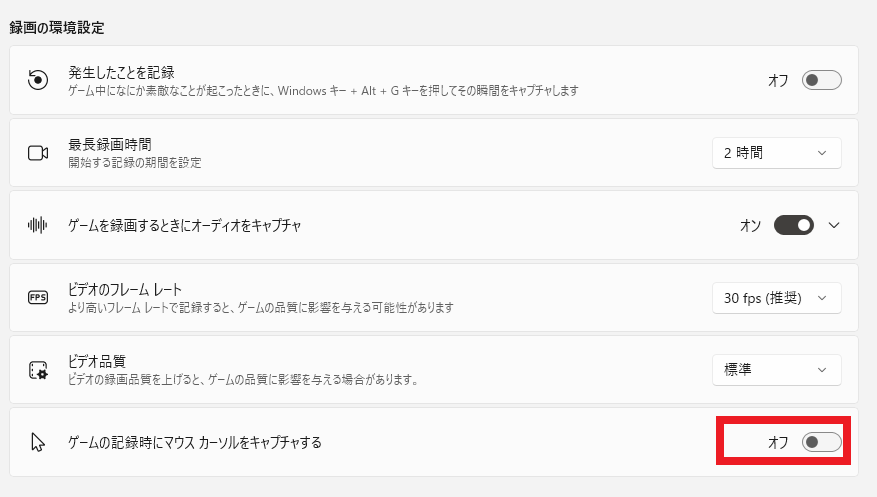
Open Windows Settings, open Games on the left side, and then display Capture.
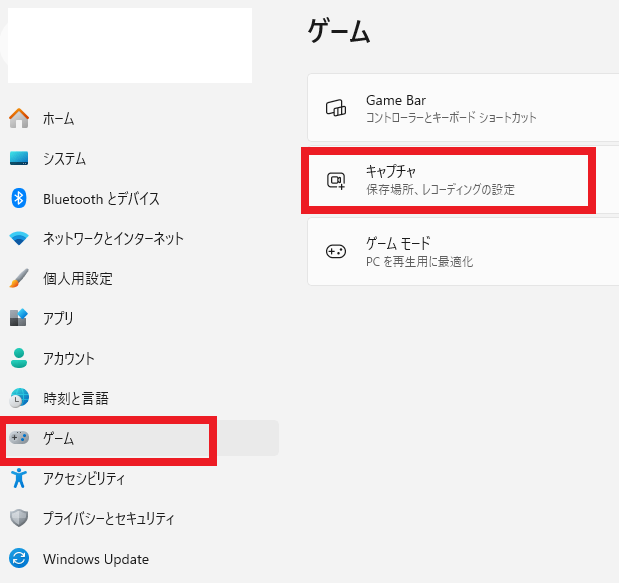
Turn off ‘Capture mouse cursor when recording gameplay’.
troubleshooting
Recording cannot be started.
The recording button may not be active, and clicking it may display the message, ‘Game features are not available on the Windows desktop or in Explorer.’
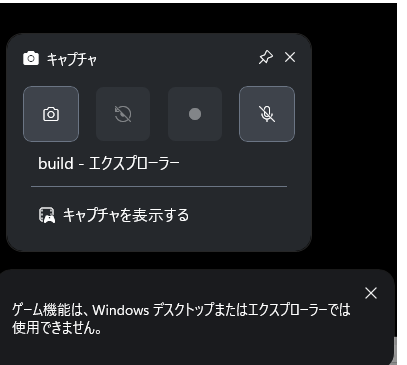
This is because the application is not active. Please select the application you want to record and press Win+G. (Conversely, this function cannot record the Windows desktop or Explorer screen.)
The recording menu (the dialog box with the recording button) is not displayed/has disappeared.
If the recording menu does not appear when you press Win+G, click the camera icon at the top of the screen to display it again.


コメント