
Things I want to do
We will implement Steam achievements.
premise
This assumes that you have already obtained the App ID for your app created with SteamWorks (the app’s settings page is displayed; the store page does not need to be published).
work
Installing Steamworks.NET
Download Steamworks.NET from the following page. At the time of writing this article, Release 2025.162.1 was the latest version.
The file to download is the .unitypackage located in the Assets folder.

From the Unity Editor menu, select Assets → ‘Import Package’ → ‘Custom Package…’.
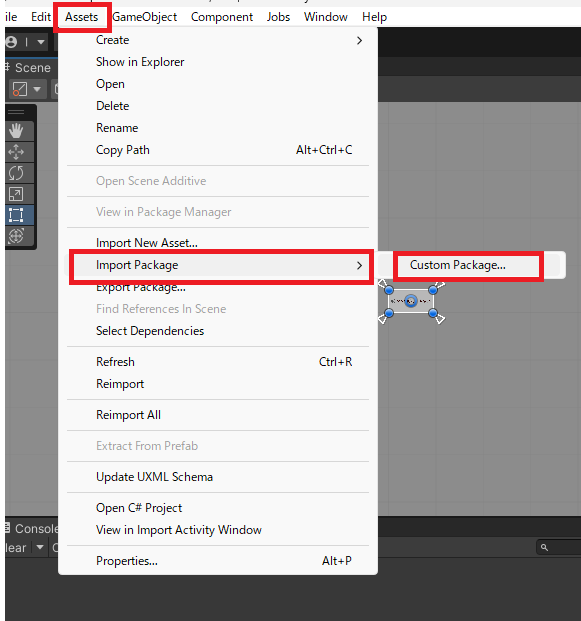
A file selection dialog will appear, so select the downloaded .unitypackage.
After waiting a while, the import file selection dialog will appear, so click Import.
The following two items will be added to the Assets folder:
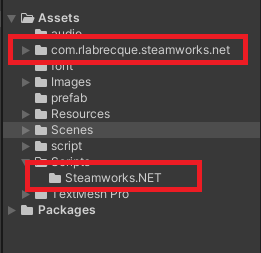
Steamworks.NET is under the MIT license. Please pay attention to the EULA.
Steamworks.NET-Example did not work in combination with Release 2025.162.1.
(It will work if you fix it, but I don’t think you need to worry about this.)
AppID settings
For development
Create a text file named steam_appid.txt
The file should only contain the AppID and be saved.
The AppID is the number shown below.
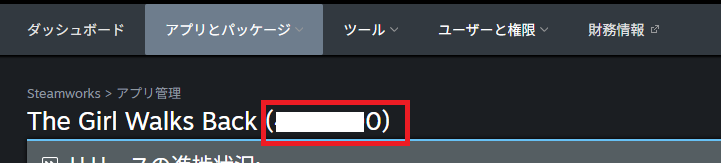
Place the created steam_appid.txt file in the root directory of your Unity project (the folder containing the *.sln files).
After placing (or updating) steam_appid.txt, restart the editor.
If you’re using it after building rather than from the editor, place the above files in the folder containing the built executable file.
Product
For the product, delete steam_appid.txt.
Open Assets\Scripts\Steamworks.NET\SteamManager.cs.
Replace ‘AppId_t.Invalid’ with ‘(AppId_t)AppID’ in the following line. Example: (AppId_t)480
if (SteamAPI.RestartAppIfNecessary(AppId_t.Invalid)) {SteamWorks settings
Open the page for the target app and then open the achievements page.
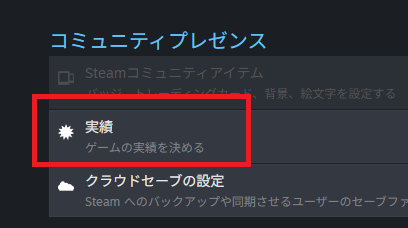
Click on the new achievement to set it. (You cannot set the achievement icon or the unachieved icon the first time. Save first and then set them.)
The examples presented here do not use values.
API Name: An ID specified by the application. It must be unique.
Progress: Set to None
Display Name: The name of the achievement displayed to the user.
Description: A description of achievements displayed to the user.
Hide?: Whether to display this to the user when it is not achieved.
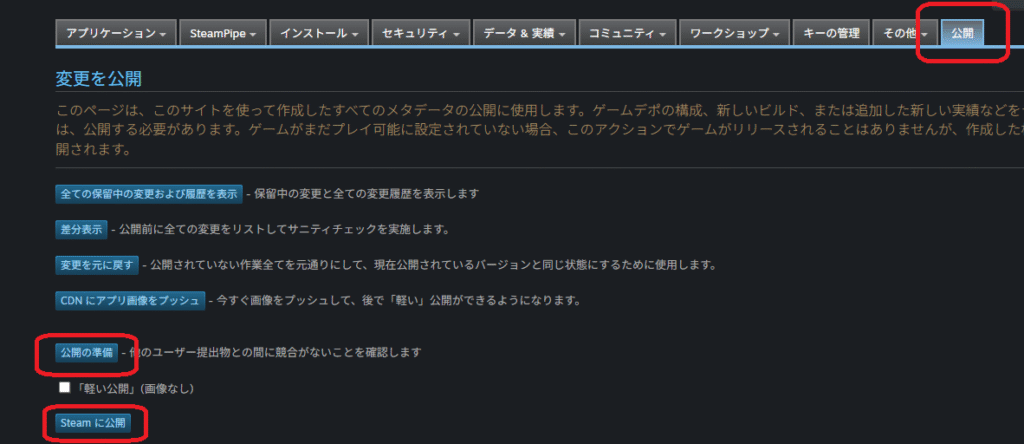
Once you’ve added the necessary achievements, go to the Publish tab and click ‘Prepare to Publish’ and then ‘Publish to Steam’.
implementation
The achievement can be unlocked using the following code. Replace ACHIEVEMENT_ID with the API name you set in SteamWorks.
if (SteamManager.Initialized) {
    SteamUserStats.SetAchievement("ACHIEVEMENT_ID");
    SteamUserStats.StoreStats();
}
This completes the implementation of achievement unlocking.
Calling SteamManager.Initialized is mandatory.
It’s a bit confusing, but SteamManager.Initialized doesn’t just check if initialization has been completed; it also creates an instance.
bonus
Checking the App ID of the launched app
Check if the AppID you set in steam_appid.txt or similar is working correctly.
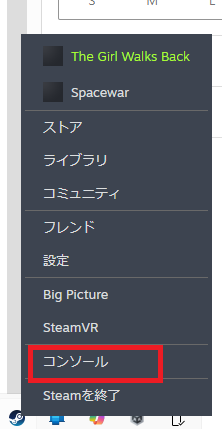
Right-click Steam and launch the console.
Launch the target app.
You should be able to find the AppID by looking at the log below.
Incidentally, AppID 480 is a test ID, so it’s not set correctly.
Game process updated : AppID 480 ''C:\Program Files\Unity\Hub\Editor\2021.3.44f1\Editor\Unity.exe'・・・・・
Websites I used as references

コメント