
Things I want to do
This is a memo on how to deal with the situation when you’re not receiving events from a gamepad even though you’ve configured Unity’s InputSystem as follows.

reason
Joystick
To begin with, the reason is that the controller I was using was not a gamepad.
What I’m trying to say is that Unity was recognizing the controller I was using as a joystick, not a gamepad.
How to check
Add a ‘Player Input’ component to any gameObject.
Click Open Input Debugger.
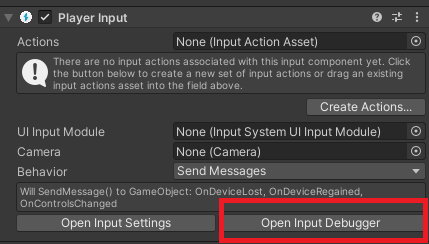
Double-click to select the device you want to check in the Devices folder.
Check the type. In the following cases, it’s a joystick, not a gamepad.
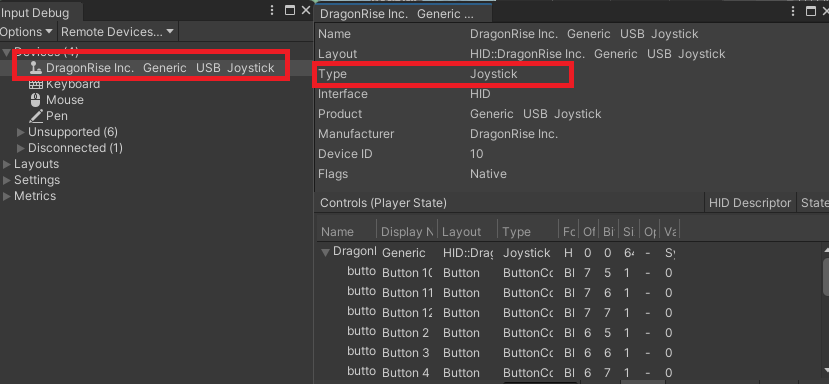
In this case, you need to register the Joystick events in InputSystem, not the GamePad events.
Still, they didn’t come.
In my environment (controller), even after registering joystick events, I didn’t receive any events.
It seems that the event wasn’t even being received by Unity’s InputSystem in the first place.
How to check
As before, open the target device in the Input Debugger.
There is an Events table at the bottom, so manipulate the controller appropriately to check if any events are being triggered.
It seems that some older or inexpensive controllers are not compatible.
countermeasure
Since testing is not possible under the above conditions, we will use an Xbox controller emulator (x360ce) for testing.
download
Download your preferred version from the following website. (Click Assets, then click x360ce.zip)
This article uses X360CE version 4.17.15.0.

install
Installation is as simple as extracting the files to any folder.
Initial setup
Launch the app, select Controller1, and check ‘Enable 1 Mapped Device’.

Click on the issue on the right once it’s highlighted.
You may be prompted to install drivers. Also, after installation, the program may become unresponsive, but restarting the computer will show that the drivers were successfully installed.
Next, click Add and select the device you want to use from the list that appears.
Next, using AutoClick will set up the button mapping nicely.
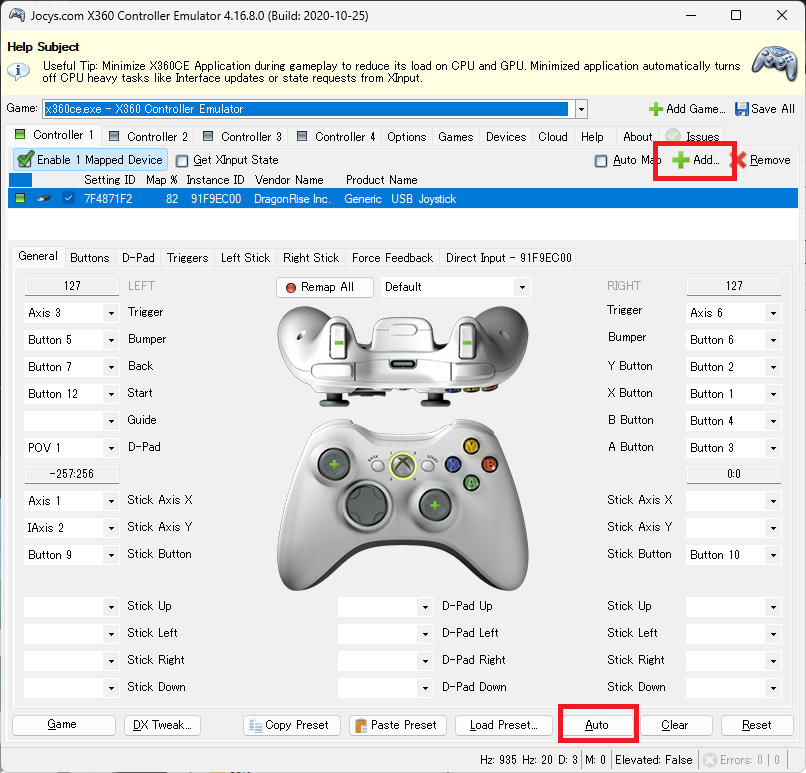
If you don’t like the settings, you can map them by clicking on the button on the controller image and then pressing the button you want to assign.
If XinputControllerWindows is listed in the Input Debugger devices as shown below, then it was successful.
If it’s not listed, try starting (playing) and then stopping the game.
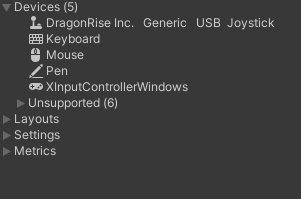
The controller will no longer function if x360ce is closed. You will need to restart x360ce to use it again.

コメント