
Things I want to do
This saves files, including those in subfolders on Windows, to a file in JSON format.
How to implement
Creating a PS1 file
Create a file named file_list.ps1, paste the following content into it, and save it.
Please change the values of $targetPath and $outputPath to match your environment.
$targetPath = "ファイルリストを作成するフォルダ"
$outputPath = "出力ファイル"

Get-ChildItem -Path $targetPath -Recurse -File  | Select-Object Name, FullName | ConvertTo-Json |Out-File $outputPath -Encoding UTF8
Specific example:
$targetPath = "./data"
$outputPath = "./file_list.json"

Get-ChildItem -Path $targetPath -Recurse -File  | Select-Object Name, FullName | ConvertTo-Json |Out-File $outputPath -Encoding UTF8
It seems that $targetPath and $outputPath do not work if they contain Japanese characters. However, it is not a problem if subfolder names or file names contain Japanese characters.
If it doesn’t work, make sure that $targetPath and $outputPath are either relative or absolute paths.
I’m saving it in UTF-8 so it’s easier to use later with JavaScript and other applications.
(fetch basically retrieves JSON in UTF8)
Execution of PS1 files
Launch PowerShell (open the Windows menu, type Power, and click the following).
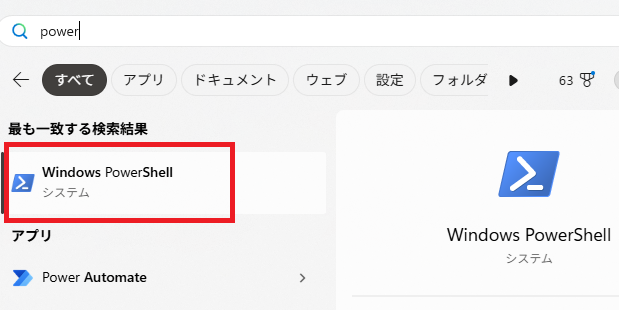
Use the cd command to navigate to the folder where you created the PS1.
Execute the following command:
./file_list.ps1Result
The list of files was saved in JSON format as shown below.
file_list.json
[
    {
        'Name': '1.txt',
        'FullName': 'G:\\test\\1.txt'
    },
    {
        'Name': '2.txt',
        'FullName': 'G:\\test\\2.txt'
    }
]#lmat_page_translation_close_translate_span#

コメント