
Things I want to do
Let’s try running high-speed image generation using an AMD GPU.
This is for those who find image generation slow with the standard StableDiffusion method, or who simply want to try out image generation.
(This method is unsuitable for those who are already doing a lot of work with StableDiffusion, as the model is fixed and parameter adjustments are almost impossible.)
We will use DirectML and sample code for DirectML.
The hardware specifications are as follows:
| CPU | AMD Ryzen 7 7735HS |
|---|---|
| memory | 32GB |
| storage | External HDD (The system disk is an SSD, and due to its large capacity, it is used externally.) |
| GPU | AMD Radeon 680M (Built-in CPU) |
-Notice-
The model you use is licensed for trial use, but it’s not completely free. Please check the license before using it.


Environment setup
Create a working folder.
Clone the following repository.
Move to venv environment (optional)
If necessary, run the following command in the command prompt to create and activate the Venv environment.
python -mvenv venv
venv\scripts\activate.bat
Move to working folder
Execute the following command to access the sample code for image generation (StableDiffusion). (The cloned repository is a collection of DirectML sample code, so you will need to navigate to a working folder to use individual samples.)
cd PyTorch\diffusion\sdLibrary Installation
Execute the following command to install the library.
pip install -r requirements.txt
pip install torch-directml
pip install accelerateexecution
Execute the following command to start it:
python app.pyThe first time you launch the application, it will take some time because the model will be downloaded.
If the following appears in the command prompt, open the displayed URL in your browser.
Running on local URL: http://127.0.0.1:7860If you see a screen like the one below, it was successful.
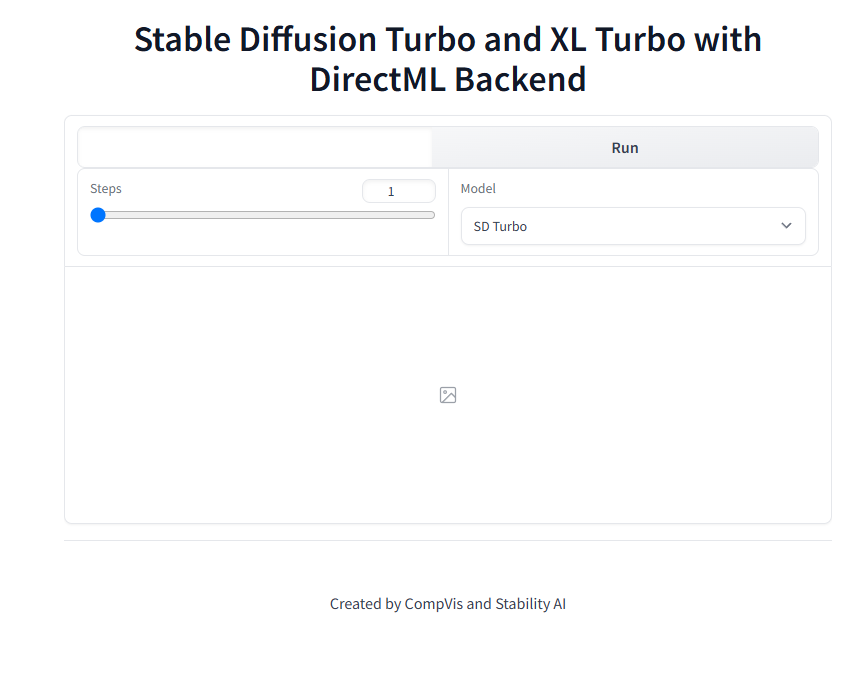
You can generate images by entering a prompt in the text box at the top of the screen and clicking Run.
Regarding SDXL Turbo
In my environment, I encountered an error when trying to switch to SDXL Turbo after generating an image with SD Turbo (insufficient VRAM?).
To generate images with SDXL Turbo, you need to switch models immediately after launching the application.
Furthermore, execution with SDXL Turbo will fail from the second attempt onwards.
Result
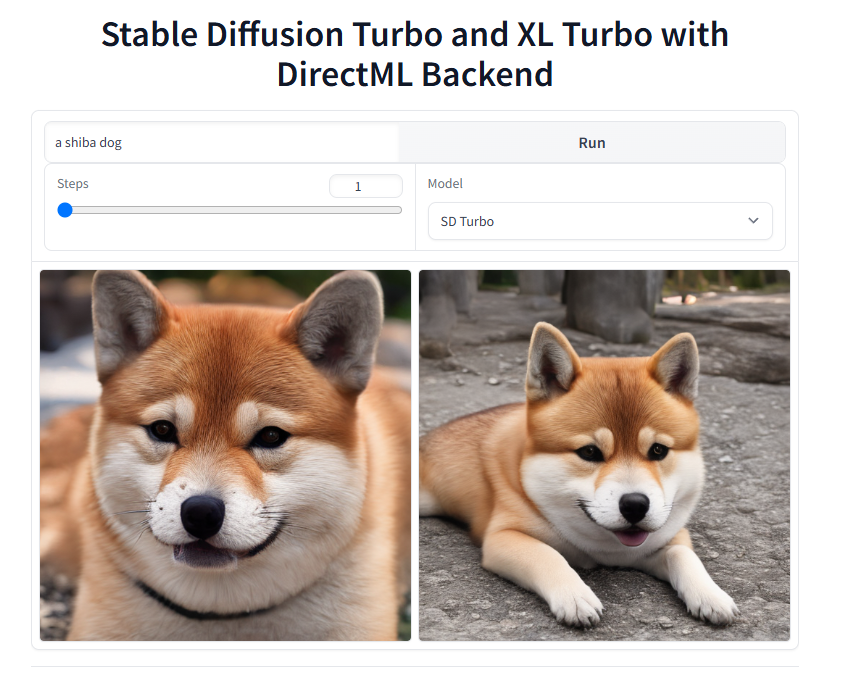
We were able to perform high-speed image generation using the integrated GPU of an AMD CPU.
In the sample used here, two copies are always created simultaneously.
On the second run, with the model already loaded, image generation for two images was completed in about 7 seconds. (Those running in a similar environment will understand just how fast that is.)

コメント