
Things I want to do
I encountered a problem where binaries uploaded to ConoHa’s server using the file manager could not be read correctly.
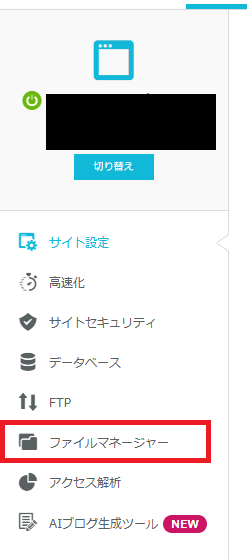
What actually happened was that when I tried to upload an AI model using the file manager and load it with JavaScript, it failed. (It wasn’t a 404 error or anything like that, but an error indicating an incorrect configuration. Therefore, it looked like the file was corrupted.)
countermeasure
reason
The file that actually failed to upload had no file extension.
ConoHa’s file manager treats files without extensions as text files (ASCII) when uploaded.
Solution
The file needs to be recognized as a binary file during the upload process.
Therefore, change the file extension of the file you are uploading locally.
The file extension you change to can be anything as long as it’s recognized as a binary file, but I’ve confirmed that it works with *.bin.
After changing the file extension, upload the file again using the file manager.
Right-click the uploaded file and select ‘Rename’ to change the file extension back to its original state.
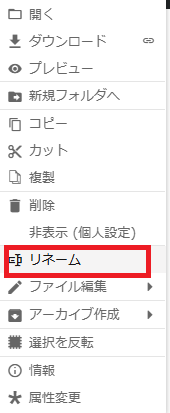
The system will perform a read verification, and if it reads correctly, the process is complete.
Please note that renaming the file after uploading from ‘no extension’ to ‘*.bin’ will not solve the problem.
How to check the problem
The problem that can be solved using the method described here is that files that should be uploaded as binary are being uploaded as ASCII files.
You can verify if the file was uploaded correctly by downloading the uploaded file and comparing it to the local file you uploaded. (If the files are completely identical, it’s likely a different issue. If they are different, there may be other causes, but it’s possible that the problem described in this article is occurring.)
The easiest way to verify file identity is using WinMerge. (You can also verify it using hashes.)

Result
The binaries uploaded to ConoHa servers using the file manager can now be read correctly.

コメント