
Things I want to do
Create a symmetrical object in Blender.
Here are two methods I will introduce.
Environment
Blender:3.4.1
Symmetry created by modifiers
Modifier
Create an object that you want to be symmetrical.
Switch to Object Mode and select the object you created.
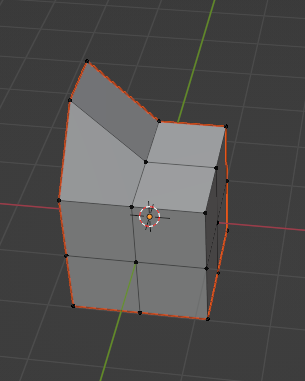
This time, I’ve prepared the following object.
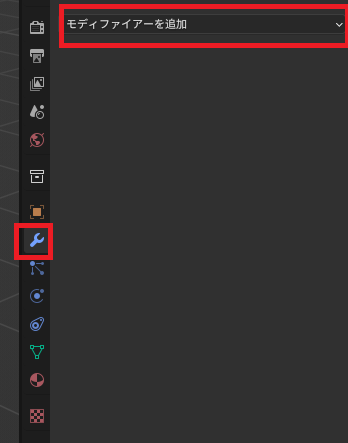
From the Modifier Properties tab, select ‘Add Modifier’.
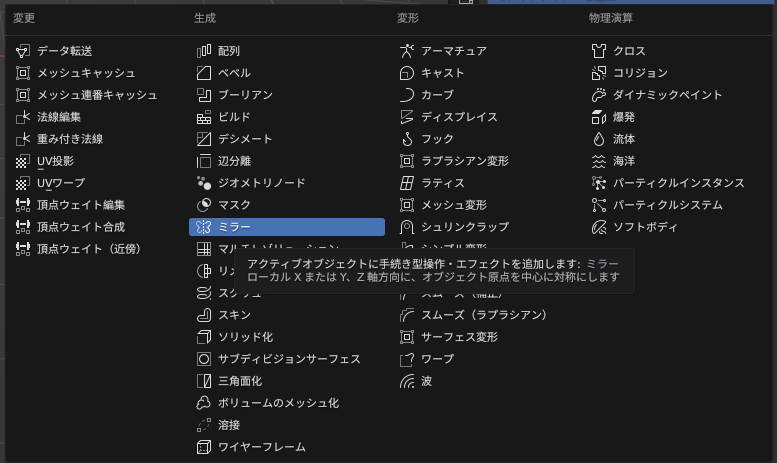
Select ‘Mirror’ from the displayed list.
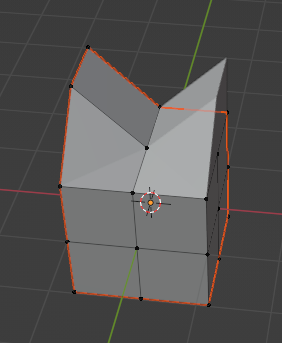
Result
The object becomes symmetrical from left to right as soon as the modifier is added, as shown below.
symmetry other than the X-axis
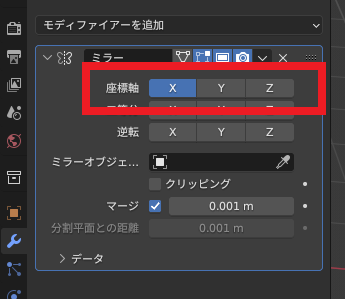
To achieve symmetry on axes other than the X-axis, select the axes to be symmetrical on in the ‘Coordinate Axes’ section below. (Multiple selections are possible.)
Correction
The origin of symmetry is the origin of the object (the yellow dot).
The following steps may resolve the issue.
If the object’s origin is in an unintended location, please refer to the following page to correct it.

Symmetry via Mesh Menu
Create an object that you want to be symmetrical.
This time, I’ve prepared the following object.
Switch to ‘Edit Mode’ and select the vertices you want to make symmetrical. (You don’t need to select all the points.)
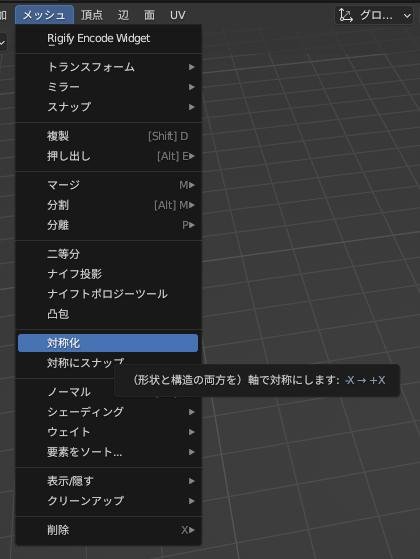
Select ‘Symmetrize’ from the ‘Mesh’ menu.
結果
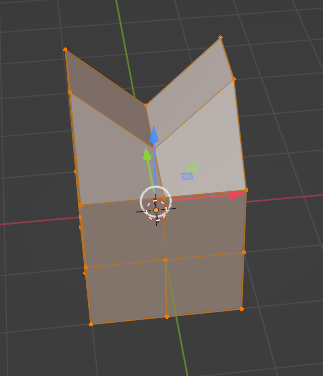
The above steps will result in a symmetrical object as shown below.
Correction
The origin of symmetry is the origin of the object (the yellow dot).
The following steps may resolve the issue.
If the object’s origin is in an unintended location, please refer to the following page to correct it.
symmetry other than the X-axis
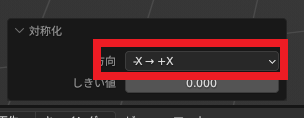
If you want to make the symmetry not along the X-axis, or if the symmetry is not in the intended direction, select the direction of symmetry from the dropdown menu that appears in the lower left after performing ‘Symmetrize’.
The difference between the two methods
The two methods produce similar results, but there are differences.
Symmetry
Symmetry created by modifiers
The entire object is affected.
Symmetry via Mesh Menu
The selected vertices are the target.
Maintaining bilateral symmetry
Symmetry created by modifiers
When you edit the area that the modifier is based on (the left side in the example), the area created by the modifier is automatically updated, maintaining symmetry.
Symmetry via Mesh Menu
Vertices can be manipulated individually.
Symmetry is not maintained.
Manipulation of points created after execution
Symmetry created by modifiers
It cannot be operated.
Areas created by modifiers are not meshes.
To perform the operation, you need to click the ‘V’ displayed in the target mirror under ‘Modifier Properties’ and then click ‘Apply’.
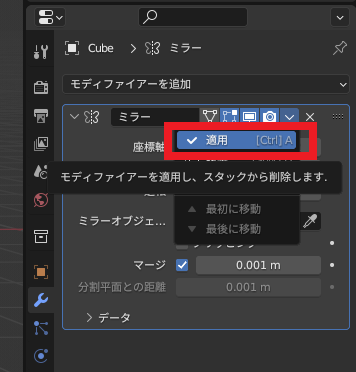
After applying the changes, the mesh will be created, and you can edit the points that were created, but the symmetry will no longer be preserved.
Symmetry via Mesh Menu
It can be operated.
コメント