
After updating my Android version, I could no longer access the files created by the app from the file manager on my device, so I investigated whether there were any other methods.
This section explains how to do it using Android Studio.
Environment
Model: Google Pixel 6 Pro
Android version: 14
Manipulating files on the device using Android Studio
premise
– Installing Android Studio
For your reference

Preparing for Android Studio
Launch Android Studio and connect your PC and Android device. (Connecting with a USB cable is the easiest method, but you can also connect via Wi-Fi.)
Make sure the device you want to use for file operations is selected.

From the top menu, select View → Tool Windows → Device File Explorer.
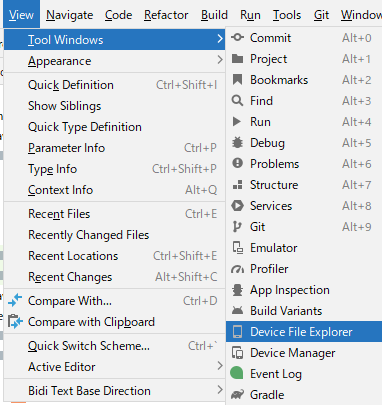
Operating Device File Explorer
The following GUI will be displayed.
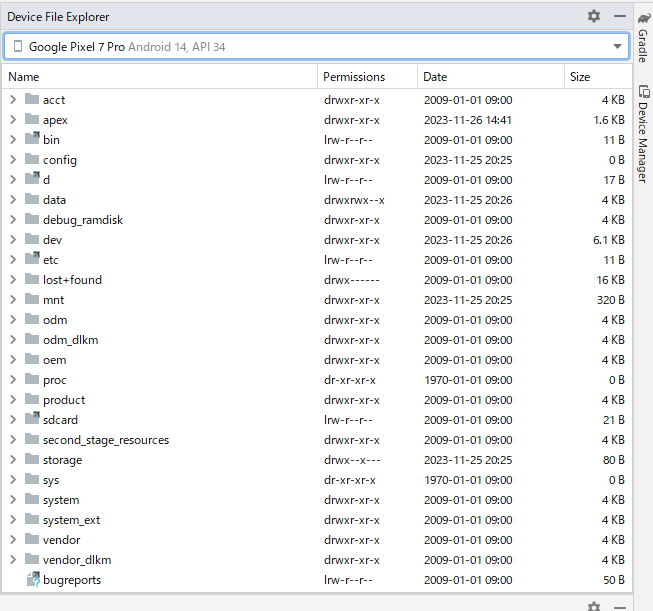
You can perform various operations by right-clicking on a folder or file.
| menu | |
| Save As | Download from device to PC |
| Upload | Upload from PC to device |
| Delete | delete |
File location
On Pixel devices, the root directory in the device’s file manager is located in the following folder:
(The Pixel is a device that cannot use an SD card, so it may be different from other devices. It might be somewhere around /storage/emulated/0.)
/sdcardThe files saved by the app are stored in the following folder.
/sdcard/Android/data/アプリ名postscript
On the Redmi Note 10 Pro, the following folder appeared to be the root directory of the device.
/storage/xxxx‐xxxx*) The XXXX part is any hexadecimal value.
Websites I used as references

コメント