
Coisas que eu quero fazer
Isso salva arquivos, incluindo aqueles em subpastas no Windows, em um arquivo no formato JSON.
Como implementar
Criando um arquivo PS1
Crie um arquivo chamado file_list.ps1, cole o seguinte conteúdo nele e salve-o.
Por favor, altere os valores de $targetPath e $outputPath para corresponderem ao seu ambiente.
$targetPath = "ファイルリストを作成するフォルダ"
$outputPath = "出力ファイル"

Get-ChildItem -Path $targetPath -Recurse -File  | Select-Object Name, FullName | ConvertTo-Json |Out-File $outputPath -Encoding UTF8
Exemplo específico:
$targetPath = "./data"
$outputPath = "./file_list.json"

Get-ChildItem -Path $targetPath -Recurse -File  | Select-Object Name, FullName | ConvertTo-Json |Out-File $outputPath -Encoding UTF8
Parece que `$targetPath` e `$outputPath` não funcionam se contiverem caracteres japoneses. No entanto, não há problema se os nomes das subpastas ou dos arquivos contiverem caracteres japoneses.
Se não funcionar, verifique se $targetPath e $outputPath são caminhos relativos ou absolutos.
Estou salvando em UTF-8 para facilitar o uso posterior com JavaScript e outros aplicativos.
(O comando fetch basicamente recupera JSON em UTF-8)
Execução de arquivos PS1
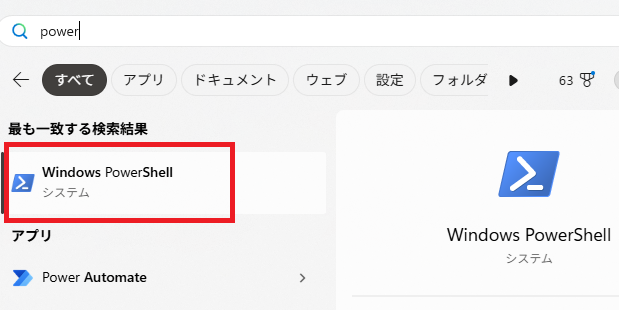
Inicie o PowerShell (abra o menu Iniciar do Windows, digite ‘Power’ e clique na opção seguinte).
Use o comando cd para navegar até a pasta onde você criou o PS1.
Execute o seguinte comando:
./file_list.ps1Resultado
A lista de arquivos foi salva em formato JSON, conforme mostrado abaixo.
lista_de_arquivos.json
[
{
Nome : 1.txt
Nome completo : G:\\test\\1.txt
},
{
Nome : 2.txt
Nome completo : G:\\test\\2.txt
}
]#lmat_page_translation_close_translate_span##lmat_page_translation_close_translate_span#

コメント