
Things I want to do
Use stable-diffusion.cpp to perform Qwen-Image image editing from the command line.
This image editing feature is apparently comparable to Google’s NanoBanana.
It can run on both AMD GPUs and CPUs.
Environment setup
stable-diffusion.cpp
Download the appropriate Zip file for your environment from the following page.
If you want to run it on an AMD GPU, you need something with ‘vulkan’ or ‘rocm’ in its name.
(Basically, Vulkan should be fine. ROCM will likely have limitations on which GPUs can be used.)
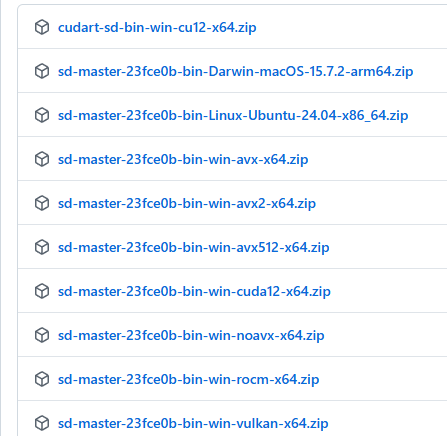
This applies to NVidia GPUs with ‘CUDA’ in their name.
AVX512, AVX2, AVX, and NOAVX are CPU-based. Please check which AVX version is compatible with your CPU and download it. (I was mistaken, but it seems AMD CPUs can also use AVX. It’s easiest to ask an AI which version is compatible.)
Once you’ve extracted the downloaded file to a folder of your choice, you’re ready to go.
Model
Please download the three models one by one from the following pages.
The Vae and LLM models are the same as those used in the article below. (Please note that the Diffusion model is different.)

For files that consist of multiple files, larger file sizes require more memory and result in better accuracy.
Please decide which model to use after considering your environment.
In my environment (Ryzen 7 7735HS with Radeon Graphics + 32GB RAM), I used Qwen_Image_Edit-Q4_0.gguf.
diffusion-model(Qwen Image Edit)
foot
llm

execution
Launch the command line and navigate to the folder where you extracted stable-diffusion.cpp.
Execute the following command. (Replace the model path with the path to the model you are using. Set the input file to the path of the input image.)
sd-cli.exe --diffusion-model Diffusion model path --vae VAE model path --llm llm model path --cfg-scale 2.5 --sampling-method euler --offload-to-cpu --diffusion-fa --flow-shift 3 -r input file -p 'change eye color to red' --seed -1
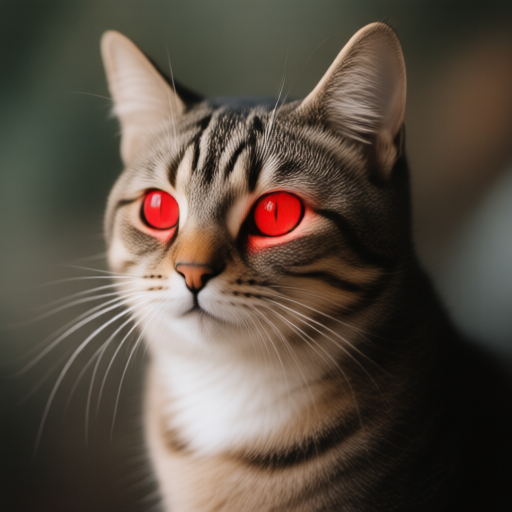
If the output file ./output.png contains an image of the input image with red eyes, then the process was successful.
Input image

Output image
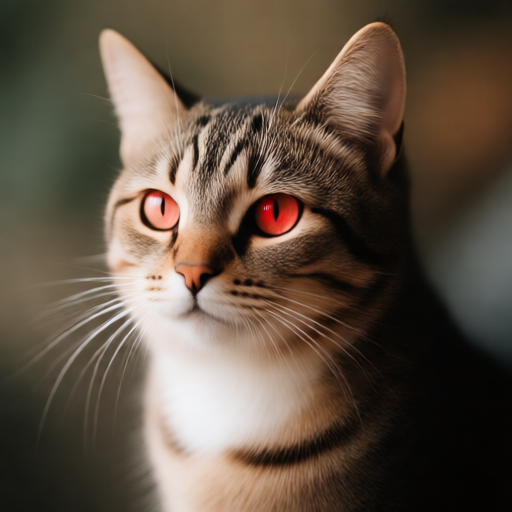
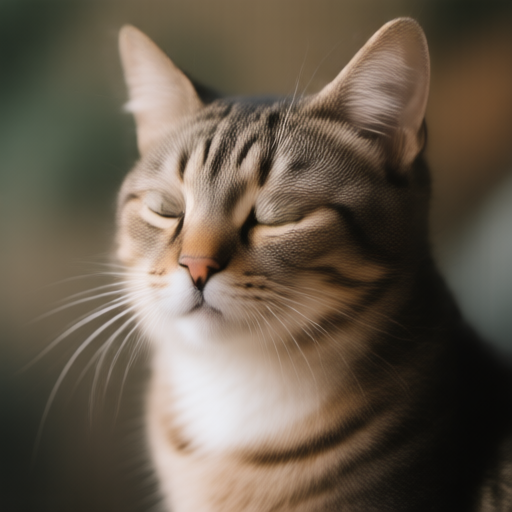
(In the example above, it worked well, but with the ‘Close eyes’ prompt, the input image was output as is.)
Options (arguments)
The options are summarized on the following page.
Only the most commonly used basic ones are listed below.
| -m | Model path |
| -p | prompt |
| -s | Seed value Specify -1 to generate randomly. Please note that if you do not specify a format, the same image will be generated every time. |
-H | Image height |
| -IN | Image width |
--foot | VAE path |
--steps | Step. Initial value: 20 Note that for some models, a lower number may be better. (The official example from Qwen Image was 50.) |
Execution speed
The image generation speed is as follows: (This does not include model loading time or time after iteration.)
| Model | CreationTime(s) |
| stable-diffusion(Vulkan) | 36 |
| Qwen Image(Vulkan) | 623 |
| Qwen Image Editing (Vulkan) | 1683 |
Regarding Qwen Image Edit 2509
The models for Qwen Image Edit 2509 can be found on the following page.
The above Qwen Image Edit execution command worked after I replaced the Diffusion model with the path to the model I downloaded below.
The official documentation mentions adding `--llm_vision` when running Qwen Image Edit 2509, but I was unable to run it with this argument. (This might be an environment issue.)Execution result
CreationTime : 2034.03s
It might just be a coincidence, but the ‘Close eyes’ feature in Queen Image Edit 2509 also worked quite well.
コメント