
Things I want to do
Manually apply the OTA image to your Pixel.
(Simply put, this reinstalls the Android system that Google periodically sends to your smartphone.)
I’ll also summarize the things I was curious about before trying it.
Notice
If you manually apply an OTA image, be sure to create a backup and do so at your own risk.
Things I was worried about before doing it
Is it possible to downgrade by applying an OTA update?
The old OTA was not compatible.
Will user data and apps be deleted when OTA updates are implemented?
It doesn’t seem to disappear, but please make sure to create backups and proceed at your own risk.
Are OTA (Over-the-Air) adaptation and factory image adaptation different?
it’s different.
Applying a factory image allows for downgrading, but it will inevitably erase all data.
Also, after downgrading, the OS version won’t automatically upgrade; it will appear as a pending update in the system update section.
It also seems to carry a high risk. (I’ve included a link to the official documentation below, but in my environment, the web tool didn’t work, and it was difficult to tell if it was working compared to OTA updates, which gave me a somewhat unsettling impression.)
For information on applying factory images, please refer to the following page.

When should OTA images be applied?
So, when is the OTA image applied? Apparently, it’s when the automatic OTA application fails.
After applying the OTA update, if the OS becomes unstable after trying various things, you might want to try this as a last resort.
procedure
Prepare
ADB
Install adb. (I didn’t need to follow these steps because it was installed automatically when I installed Android Studio.)

This will allow ADB to run without a path.

USB connection
Connect the target Pixel to your PC via USB and enable USB debugging in Developer Options.
Please refer to the following page for instructions on how to access developer options.
OTAdata Download
Download the OTA (Over-the-Air) update you want to apply from the page below. (Note that it varies depending on the model.)
After downloading the file, run the following command.
certutil -hashfile ダウンロードしたファイルのパス SHA256The hash value calculated using SHA256 will be displayed.
Please check if the 8 digits before the file extension in the filename are correct, as they are the first 8 digits of the hash. (If they are incorrect, the file is corrupted and you will need to download it again.)
Below is an example of the execution; please confirm that the contents within the red box are the same.

OTA verification
Check that there are no unapplied OTA updates by going to ‘Settings → System → Software Update → System Update’.
Adaptation
Execute the following command from the command prompt.
adb reboot recovery
Once the device restarts and displays ‘No Command,’ press and hold the power button while pressing the volume up button.
A menu will be displayed.Apply update from ADBSelect and execute. (Select using the volume buttons, then execute using the power button.)
Execute the following command:
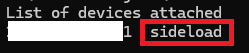
adb devices
Verify that it is sideloaded next to the device as shown below.
Apply the downloaded OTA using the following command.
adb sideload filename
Once the process is completeReboot system nowSelect this option and restart to complete the process.
Websites I used as references
コメント