
Things I want to do
This makes it appear as if the screen resolution has been changed on an Android device.
To be precise, it seems that the DevicePixelRatio, not the resolution, has changed.
Specifically, the size of app elements (such as buttons) and fonts will change. (This will especially affect how the display appears in a web browser.)
Some apps, such as full-screen games, are unaffected.
* Serious problems (such as buttons becoming unresponsive) may occur. Proceed at your own risk.
Environment
I have confirmed that this setting exists in Android 14 and 15.
(This setting may not be available on all models.)
How to change
Displaying developer options
Display developer options.
Please refer to the article below for instructions.

Change settings
Open Developer Options.
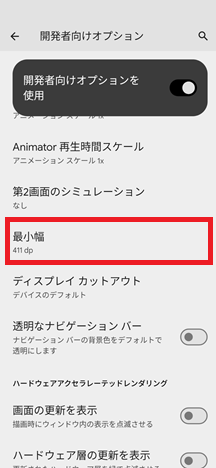
Turn on ‘Use developer options.’ Find the ‘Minimum width’ item below the drawing area. (It’s slightly below the middle.)
Please note down the original values so you can revert to the original state.。
You can think of the value as the horizontal resolution.
Result
The results of the changes on the Pixel 7 Pro are shown below.
You can see that the text becomes smaller when the value is small, and larger when the value is large.
Looking at the address bar, you can see that it affects not only the HTML but also the size of the application’s GUI.
When the value is set to 500, you can see that the way the article is displayed changes, presumably because it’s being detected as a PC.
Minimum width 411 (initial value):

Minimum amplitude 350:
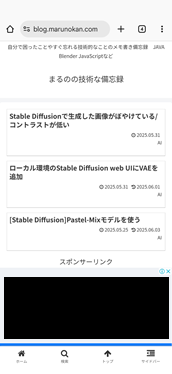
Minimum amplitude 500:
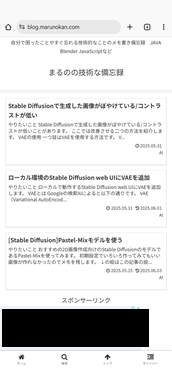
コメント