
Things I want to do
Add a VAE to the locally running Stable Diffusion web UI.
What is VAE?
According to Google’s search AI, the following is true:
VAE (Variational AutoEncoder) isDeep learning models are used in various fields of AI, such as image generation and anomaly detection.It is a type of unsupervised learning that is based on an autoencoder for compressing and decompressing data, and is characterized by the introduction of probability distributions for latent variables.
The explanation above might not be very clear, but you can think of StableDiffusion as a plugin that improves the appearance of output images.
Environment
stable-diffusion-webui-forge
(Other stable-diffusion-webui models can be installed using the same method.)
Download VAE
download
Download VAE.
Rather than searching for VAEs directly, you’ll often find links to recommended VAEs on the model download page.
Here’s a link to the VAE I use.
General-purpose VAE
This is a VAE (Value-Added Engineering) developed by stability ai (the developer of Stable Diffusion).
It can be used with both live-action and anime-style models.
You can download it from ‘vae-ft-mse-840000-ema-pruned.ckpt’ on the following page.
VAE for anime images
This is a VAE for anime images.
You can download it from ‘kl-f8-anime.ckpt’ on the following page.
VAE Installation
Copy the downloaded file to the following folder.
インストールフォルダ\webui\models\VAEDepending on how StableDiffusion is installed, the webui folder may not exist, and instead be located in ‘installation folder\models\VAE’.
Once the copying is complete, click the button at the bottom of the GUI.

Once the process is complete, you will be able to select the downloaded VAE from the dropdown menu shown in the image below the button.
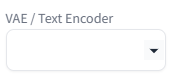
The items displayed in the dropdown menu above are not limited to just VAEs.
VAEs have compatibility issues with models. Just because you’ve set up a VAE doesn’t guarantee you’ll create a good image. (Personal preferences also play a role.)
Depending on the StableDiffusion you are using, it will display as ‘VAE’ instead of ‘VAE/TextEncoder’.
VAE used image generation
Select the VAE you want to use from the VAE/Text Encoder above, then set the prompts as you would for normal image generation and click Generate.
Result
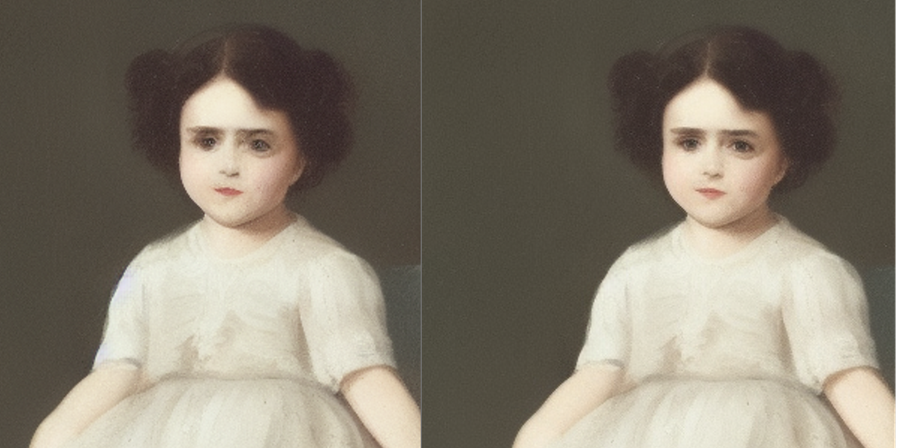
Below is a comparison of using and not using vae-ft-mse-840000-ema-pruned.ckpt.
The image on the left is an unused image, and the image on the right is an image generated using the function.
You can see that the image on the right is clearer.

コメント