
Things I want to do
The StabeleDiffusionGUI generates a prompt randomly from multiple word candidates.
We will use the sd-dynamic-prompts extension.
This extension is for Automatic1111, and I’ve tested it using Forge.
example
The following is fixed:
”a girl,”
Randomly selected from the following::
”blue hair”、”yellow hair”
A single Generate command will automatically create/generate the following prompts/images. (Since it’s random, not both will necessarily be created.)
”a girl, blue hair”
”a girl, yellow hair”
Installing sd-dynamic-prompts
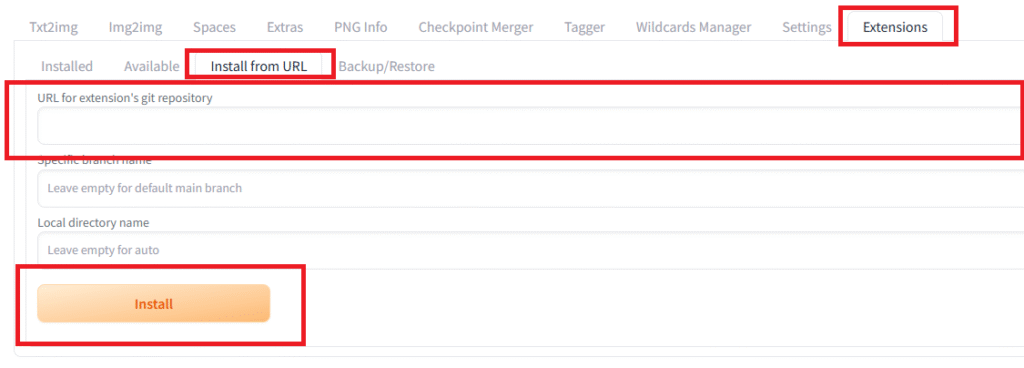
Open the ‘Install from URL’ tab within the ‘Extensions’ tab.
Enter the following URL for the extension git repository:
https://github.com/adieyal/sd-dynamic-promptsClick ‘install’.
If the installation fails, please refer to the following article.

Restart StableDiffusion to complete the installation.
Automatic creation of prompts
Prepare
Click the ◀ next to Dynamic Prompts (below Seed settings) in the Txt2img or Img2img tab to open the settings. Make sure that Dynamic Prompts enabled is checked.

Basic usage
Add the following syntax to the Prompt:
One item will be randomly selected from the items set during image generation, and a prompt will be played.
The string outside the curly braces {} is fixed and used every time.
{item1|item2|item3|...}Specify the batch count and click Generate to generate the images.
(If you set the Batch count to 5, a prompt will be generated 5 times.)
example
Input prompt:
a girl, {blue|yellow} hairPrompts used during image generation:
a girl, blue hairmosquito
a girl, yellow hairHow to use wildcards (dictionary files)
By entering the following syntax in the prompt, one word will be randomly selected from the set word list and a prompt will be created.
__group__There are two underscores (‘_’).
To configure the word settings, create a file named group.txt in webui\extensions\sd-dynamic-prompts\wildcards with the following content. The ‘group’ in the filename is the name of the group you are creating.
item1
item2
example
webui\extensions\sd-dynamic-prompts\wildcards¥color.txt:
yellow
blue
Input prompt:
a girl, __color__ hairPrompts used during image generation:
a girl, blue hairmosquito
a girl, yellow hairHow to check the prompt used
Since the prompt is automatically generated using the method described in this article, the actual prompt that is created will not be displayed in the results.
Finally, I’ll show you how to check the prompts that were actually used in the generated image prompts.
How to check
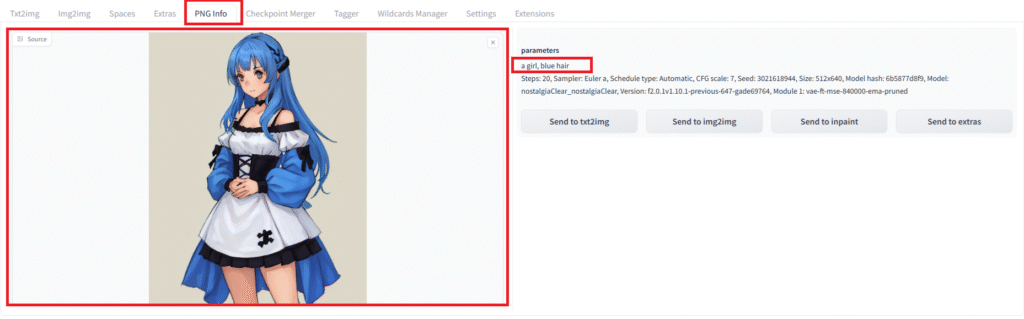
Open the PNG info tab.
Drag and drop the image you created into the source section on the left to display it.
After a short wait, the prompt you used will appear on the right. (In the example below, it’s ‘a girl, blue hair’)
Result
I was able to create a prompt randomly from multiple word candidates using StabeleDiffusionGUI.
コメント