
Things I want to do
Stable Diffusion Forge typically requires an Nvidia GPU (such as GeForce).
The article below describes how to use Stable Diffusion Forge with an AMD GPU (direct-ml).

However, as mentioned in the article, Flux.1 will not work in the environment described above.
This article describes how to run Flux.1 in an environment without CUDA by executing it on the CPU without using a GPU.
Because it runs on the CPU, execution is quite slow. (About 20 minutes per image on my system)
Flux.1 includes the images that were created.Commercial use is not allowedis.
Environment setup
download
The following page will open.
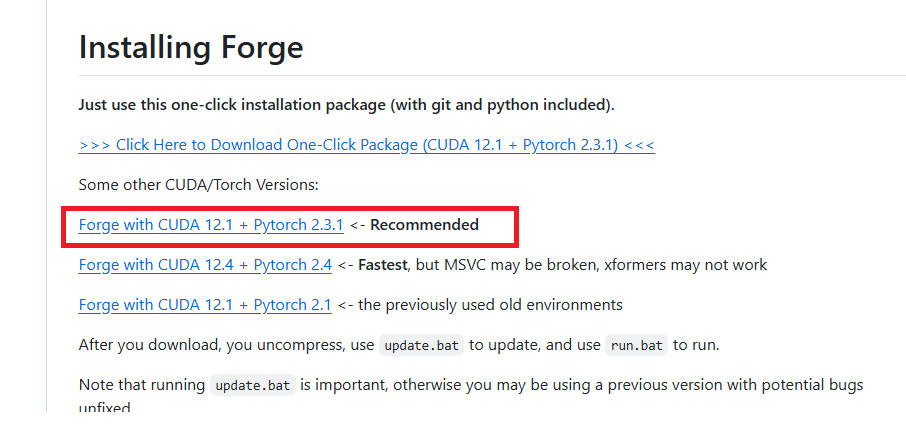
Scroll down the page to find the ‘Installing Forge’ section, and click on the recommended binary to download it.
Development
Extract the downloaded zip file to a folder of your choice.
bat modification
Open the following file with a text editor such as Notepad.
webui¥webui-user.bat
Modify the following line.
set COMMANDLINE_ARGS=After correction
set COMMANDLINE_ARGS=--always-cpu --skip-torch-cuda-test --no-half --opt-sub-quad-attention --upcast-sampling --opt-sdp-attentionThis completes the environment setup.
–always-cpu –skip-torch-cuda-test is required, but please adjust the others as needed.
Model Installation
Depending on the file, you may need to log in to HuggingFace. Please log in as appropriate.
Download flux1-dev-fp8.safetensors from the following URL and place it in the webui\models\Stable-diffusion folder.
Download clip_l.safetensors and t5xxl_fp16.safetensors from the following URL and place them in the webui\models\VAE folder.
Download ae.safetensors from the following URL and place it in the webui\models\VAE folder.
execution
Run the run.bat file located in the extracted folder.
If you encounter the following error during execution (processing will continue), execute the `git config~` command displayed. This error may reappear. If it appears again, execute the command again. (The folder path in the argument should have changed.)

If your browser launches and the GUI is displayed as shown below, then it was successful.

Image generation
The following changes will be made from the displayed GUI:
UI: Check flux
CheckPoint: Select flux1-dev-fp8.safetensors
VAE/TextEncoder: Select three files (in any order): ae.safetensors, clip_l.safetensors, and t5xxl_fp16.safetensors.

Once the above settings are complete, you can create an image by entering prompts, just like with StableDiffusion.
In Flux.1, it is recommended not to enter negative prompts.
Result
I was able to create the image by entering the prompts in the displayed GUI and clicking Generate.
コメント