
Things I want to do
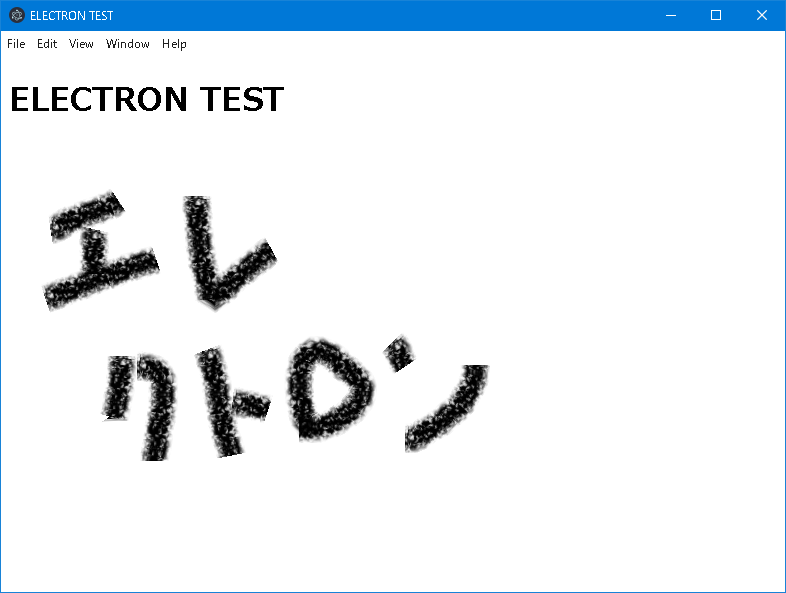
We will create a Windows application using Electron as shown below.
What is an electron?
Electron creates executable files from web pages created with JavaScript/HTML/CSS.
While it’s possible to create executable files for Windows, Mac, and Linux, here we’ll create an executable file for Windows.
For more details, please see the official page below.

Project creation
Preparation
Node.js is required.
Install the appropriate Node.js version for your environment from the following link.
Project creation
Create a working folder of your choice and execute the following command.
npm init -yExecution in Electron
Installing Electron
install
Open a command prompt and run the following command in your working folder.
npm i electron --save-devPreparing the files to be executed
Create a folder named `Src` under the folder where you created the files you want to convert into executable files. (For example, copy the entire contents of the `dist` folder bundled with Vite to any folder.) Make sure not to disrupt the original folder structure.
The following two files have been prepared. Save them in the same folder.
index.html
<!doctype html>
<html lang="en">
<head>
    <meta charset="UTF-8" />
    <meta name="viewport" content="width=device-width, initial-scale=1.0" />
    <title>ELECTRON TEST</title>
</head>

<body>
	<h1>ELECTRON TEST</h1>
	<img src="./img.png">
</body>
</html>
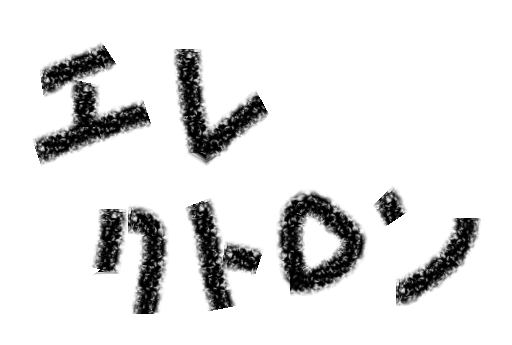
img.png
Create entry point
Create a new file named main.js in the folder where you created the two files mentioned above.
(If you want to load a file other than index.html, edit the index.html part of win.loadFile( file:// + __dirname + /index.html ))
const { app, BrowserWindow } = require('electron/main')

const createWindow = () => {
  const win = new BrowserWindow({
    width: 800,
    height: 600
  })

  win.loadFile('file://' + __dirname + '/index.html');
}

app.whenReady().then(() => {
  createWindow()

  app.on('activate', () => {
    if (BrowserWindow.getAllWindows().length === 0) {
      createWindow()
    }
  })
})

app.on('window-all-closed', () => {
  if (process.platform !== 'darwin') {
    app.quit()
  }
})
Electron can run with just the argument ‘index.html’ for loadFile, but it will fail after packaging.
execution
Execute the following command in your working folder (the parent folder of the Src folder).
node_modules/.bin/electron .The HTML and image created will be displayed as shown below.
Packaging
Installing electron-builder
Install electron-builder in your working folder using the following command:
npm i electron-builder --save-devModify Package.json
Open the Package.json file located in the project folder.
The following settings
"main": "index.js",Modify it as shown below.
"main": "src/main.js",Running electron-builder
You can build it using the following command.
node_modules\.bin\electron-builder buildThe process is complete when an .exe file is created in the .dist folder. (The .exe file directly under .dist is the installer.)
If you encounter an error like the one below, you may not have administrator privileges.
Run the application that executes the build command (such as Command Prompt or Visual Studio Code) with administrator privileges and then execute the command.
ERROR: Cannot create symbolic link : �N���C�A���g�͗v�����ꂽ�������ۗL���Ă��܂����BResult
I was able to convert the web application into an executable file that runs on Windows.
For your reference
The resulting file size is as follows: (I believe this is close to the minimum size without any tuning.)
Since it uses Chromium, it’s fairly large.
| File size (MByte) | |
| installer | 78 |
| 展開後 | 264 |
Websites I used as references




コメント