
Things I want to do
Displaying developer options on Google Pixel 6 Pro.
Many websites explain how to display developer options, but since the process varies slightly depending on the device and version, we’ll explain it here as well.
環境
Model: Google Pixel 6 Pro
Android version: 13
Show developer options
Open your Android settings.
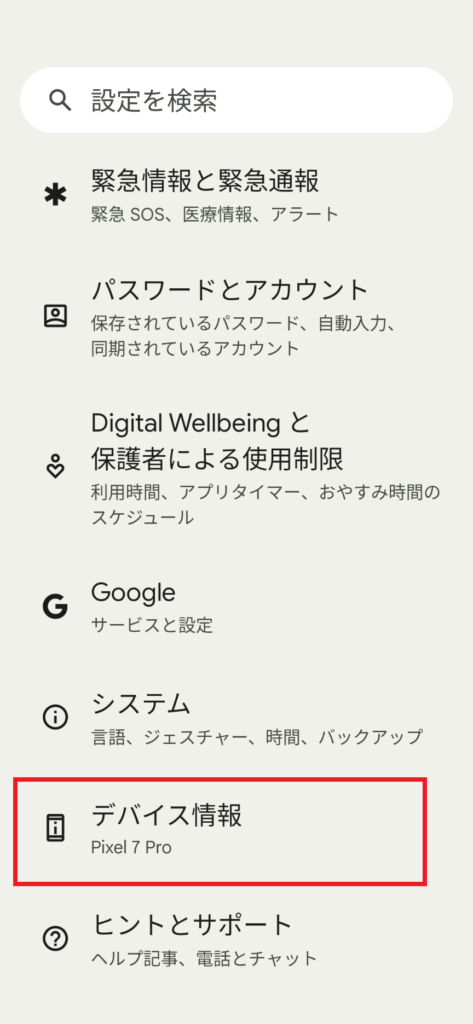
Tap ‘Device Information’ at the top. (Second from the bottom)
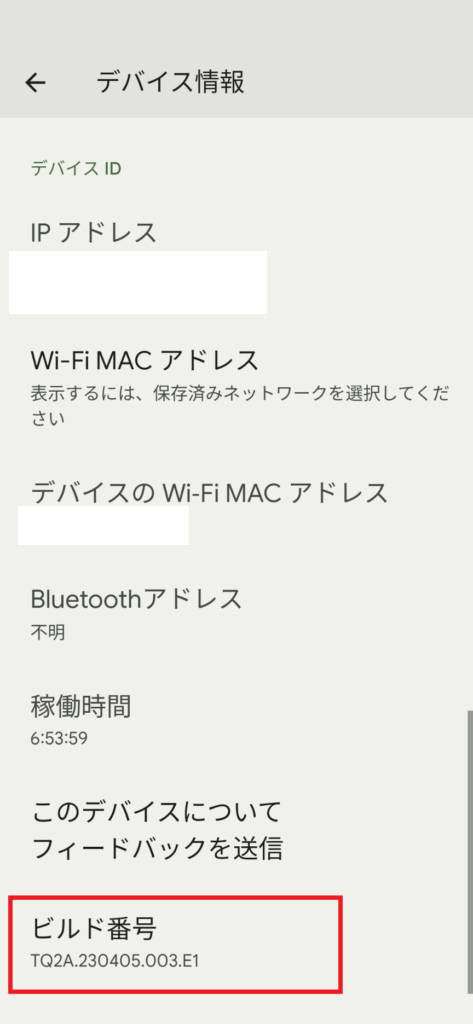
Tap the build number above repeatedly.
The build number is also displayed under ‘Android version’ in ‘Device information,’ but developer options are not enabled there.
(If you keep pressing the button repeatedly, it will display ‘X more presses until developer options are enabled.’)
If successful, a PIN display screen will appear. Displaying the PIN will enable you to use ‘Developer Options’.
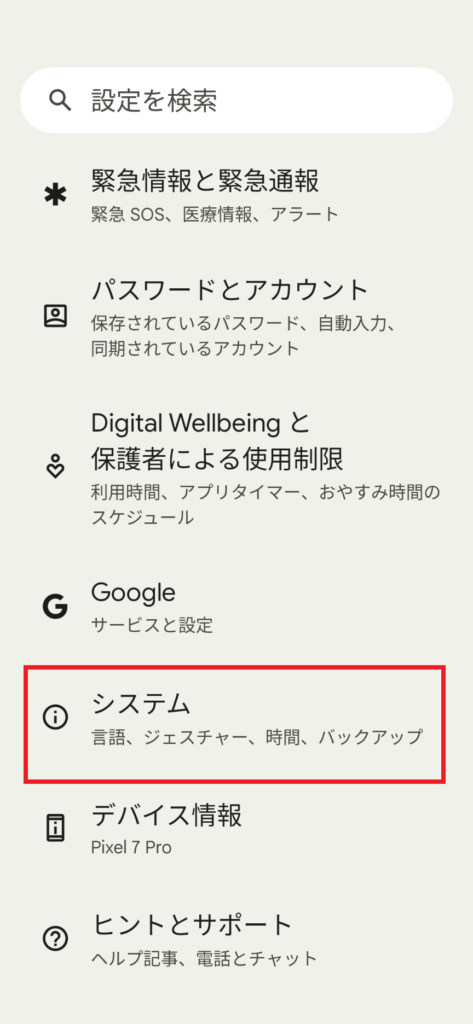
To use the enabled ‘Developer options,’ open System (third from the bottom) in Android settings.
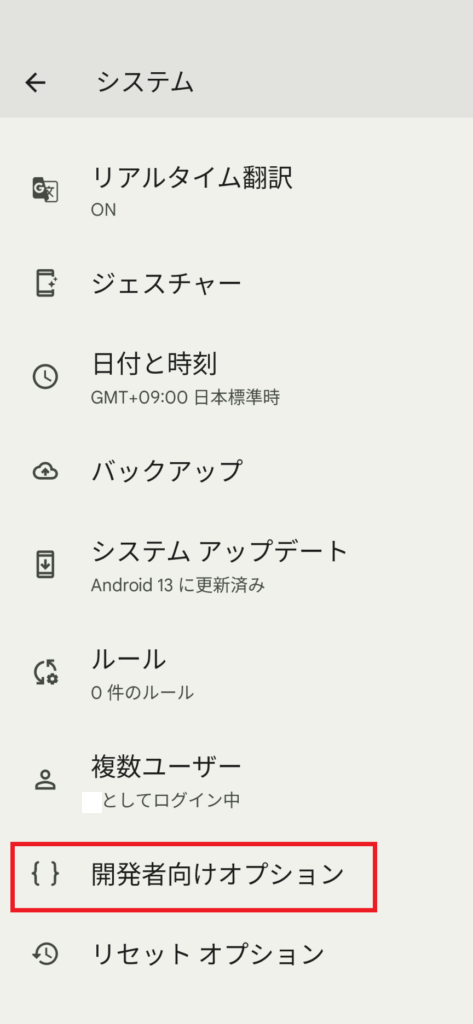
As shown above, ‘Developer Options’ will be displayed.
Enabling ‘Developer Options’ does not require a restart, but disabling ‘Developer Options’ does.
Also, if you disable ‘Developer Options,’ any settings you changed while they were enabled will also be invalidated.

コメント