
Things I want to do
When merging or editing objects, the object origin (yellow dot) sometimes moves to an unexpected location. This tool moves it back to the correct (or likely correct) position.
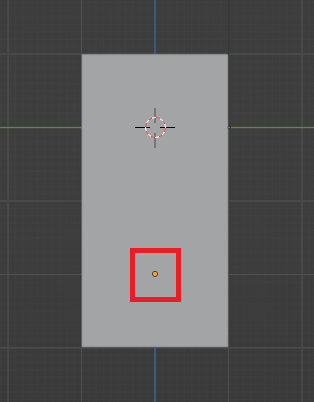
The yellow dot within the red frame above is the origin. Ideally, it should be in the center of the rectangular prism or at the origin of space, but it’s located at the bottom of the rectangular prism.
The origin of an object is used for editing functions.
If the function is not working properly, adjusting the origin position may improve the situation.
Here, we will introduce methods for moving the origin to the object’s centroid, the spatial origin, and an arbitrary point.
Environment
Blender:3.4.1
Move to the object’s center of gravity
Move to the object’s center of gravity
In ‘Object Mode,’ select the target object.
With the object selected, right-click → select ‘Set Origin’ → select ‘Move Origin to Center of Centrance’.
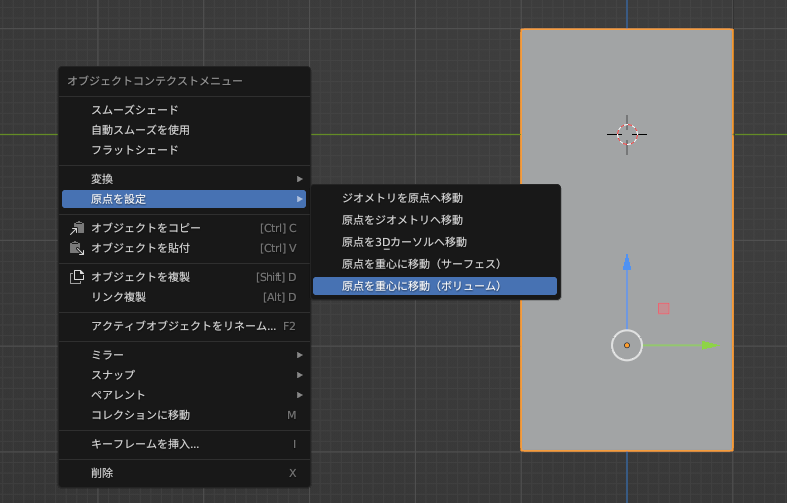
Result
The origin has moved to the center of the object, as shown below.
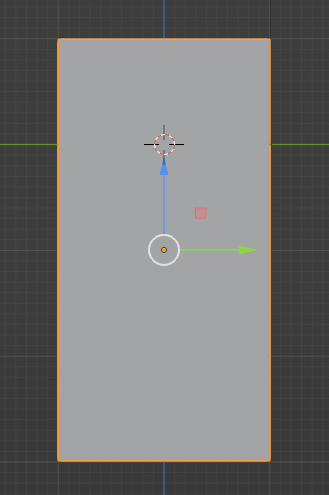
Move to the origin of space.
Move to the origin of space.
In ‘Object Mode,’ select the target object.
Press Shift+C. (This step moves the 3D cursor to the origin of the space. If the 3D cursor is already at the origin of the space, this step can be omitted.)
With the object selected, right-click → select ‘Set Origin’ → select ‘Move Origin to 3D Cursor’.
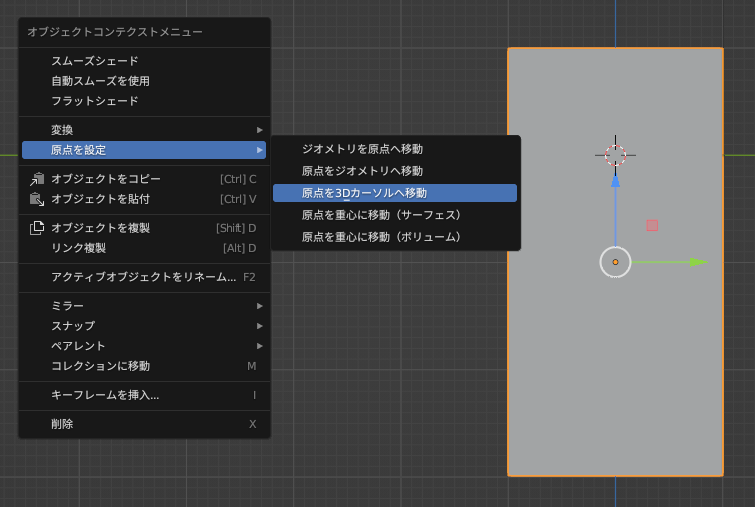
Result
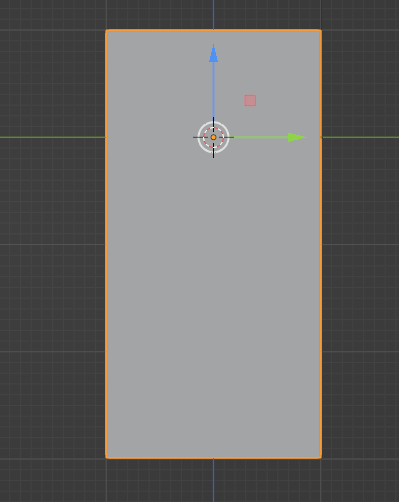
The origin has moved to the origin of space, as shown below.
Move to any point
Move to the 3D cursor’s position
In ‘Object Mode,’ select the target object.
Move the 3D cursor by holding down Shift and right-dragging. (You can move it to any point by moving it from the x, y, and z viewpoints.)
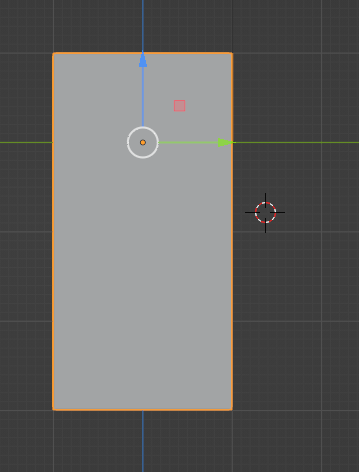
With the object selected, right-click → select ‘Set Origin’ → select ‘Move Origin to 3D Cursor’.
結果
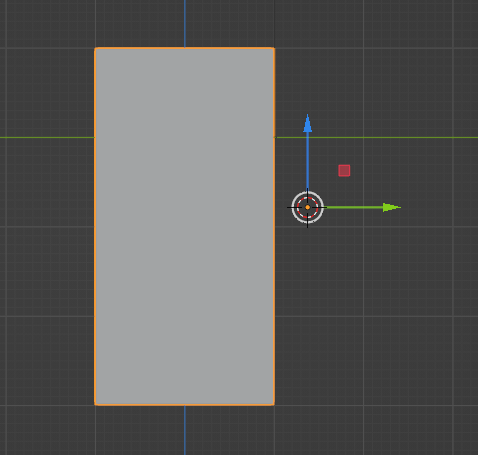
The origin has moved to an arbitrary point, as shown below.

コメント