
Things I want to do
When you install Android Studio, the development environment for Android apps, adb (Android Debug Bridge), which allows you to install apps and manipulate files on your Android device from your PC, is also installed.
However, initially, you need to specify the path to run it from the command prompt.
This explains how to run it using only adb.
Environment
OS:windows11
Android Debug Bridge version 1.0.41
Version 33.0.3-8952118
Set as environment variable
Location of the executable file
adb is installed in the following folder.
The username is your Windows username.
C:\Users\ユーザ名\AppData\Local\Android\Sdk\platform-tools\adb.exeSet as environment variable
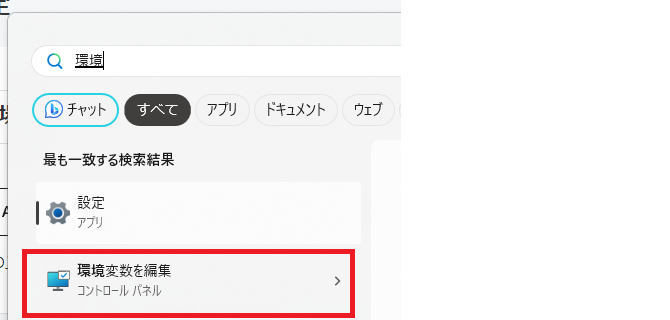
Press the Windows key and type ‘environment’.
Click ‘Edit environment variables’ which will appear.
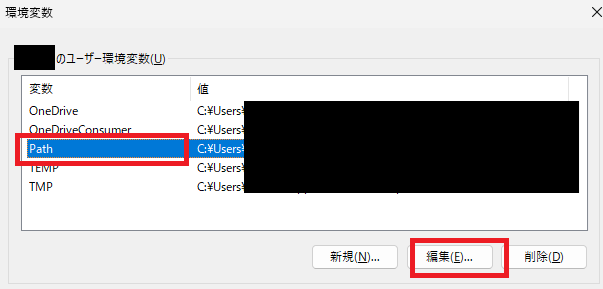
In the dialog box that appears, select ‘Path’ and then click ‘Edit’.
Click ‘New’ in the following dialog box and enter the following string:
(You could also enter C:\Users\username\AppData\Local\Android\Sdk\platform-tools\adb.exe, but it’s easier to use this fixed path for all users.)
%USERPROFILE%\AppData\Local\Android\Sdk\platform-tools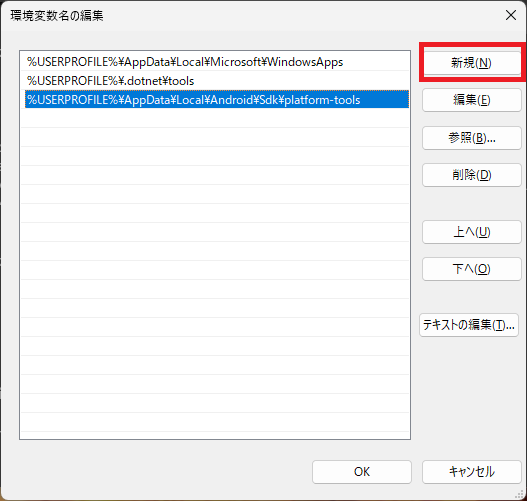
Click OK on the two dialog boxes that open to complete the process.
Result
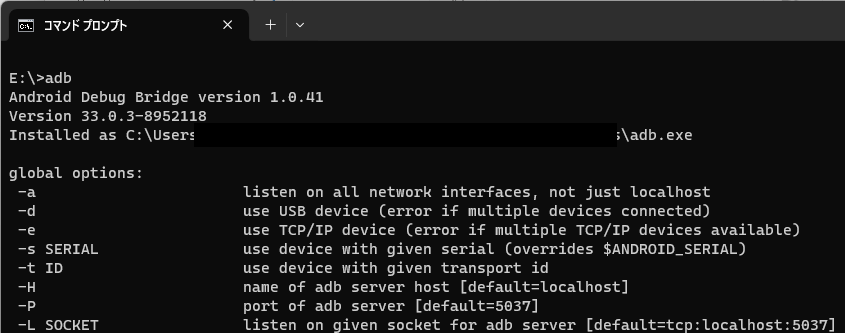
Open a new command prompt, type `adb` in any directory, and if you see output similar to the following, it’s successful. (The output is long, so you may need to scroll up to see the same output, but if the help is displayed, there’s no problem.)

コメント