
Things I want to do
This guide will show you how to run Linux (Ubuntu) on Windows using WSL 2.0.
(I researched and tried various methods, but the first one I found didn’t work. Here, I’ll introduce a procedure that even a beginner can use to get it working, along with some simple instructions.)
Environment
Windows 11 Pro 24H2 (Note: This may vary depending on the version)
install
Run PowerShell as an administrator.
The specific steps are as follows:
Open the Windows Start menu → Search for PowerShell → Select ‘Windows PowerShell’ → Select ‘Run as administrator’ from the right side.
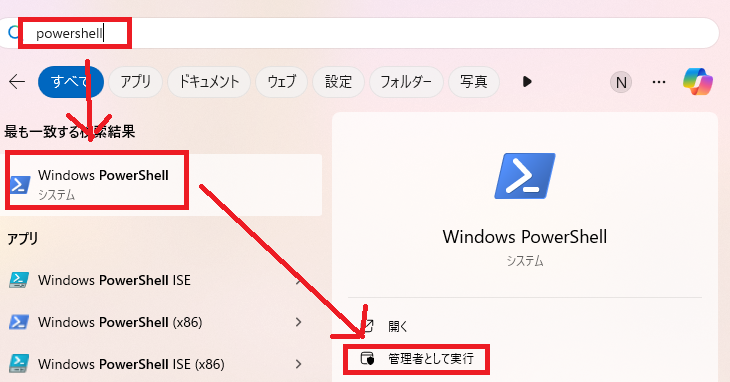
Execute the following command in PowerShell.
wsl --installThe process will be completed in a few minutes, and you will be prompted to restart, so restart Windows.
Once the restart is complete, run PowerShell again as an administrator.
Execute the following command in PowerShell.
wsl --installYou might suspect a typo, but you need to execute the same command twice.
boot
Ubuntu will be added to your Windows Start Menu as shown below, so click on it to run it.

Upon launching, a terminal will appear, prompting you to set a username and password.
Please note that nothing will be displayed when you enter your password.
Once you’ve finished configuring your user settings, you’ll be able to use the Ubuntu terminal.
Result
I was able to run Linux (Ubuntu) on Windows using WSL 2.0.
File operation
Manipulating WSL files from Windows
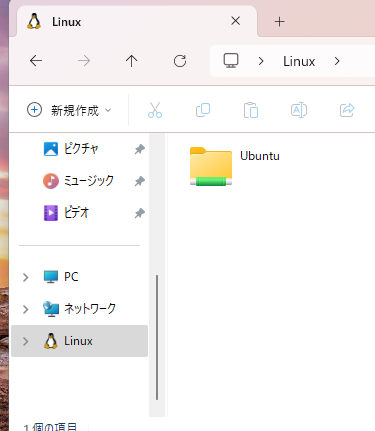
Linux will be added to the left side of Windows Explorer as shown below.
Files created with WSL exist within Ubuntu, which is part of Linux, and can be read and written directly.
Manipulating Windows files from WSL
You can access the Windows C drive by navigating to ‘/mnt/c/’ in the terminal.

コメント