
Things I want to do
I will create an FPS-like behavior in Unity that is controlled with a mouse.
I will list some points to keep in mind regarding the creation process.
This is still under construction, so there may be errors. Please use it only as a reference.
specification:
Mouse left/right movement → Camera view movement
Left click → Forward
It stops when it hits a wall.
Environment
Unity:6000.0.23f1.7976.6000.0/Staging4246
implementation
Player and camera setup
Player Creation
Create a 3D object that will become the Player from the ‘+’ in the Hierarchy.
Since it’s not visible in FPS games, any shape would do, but I chose Cube. Considering future hit detection issues, Cube seems like the safest choice.
Camera movement
Drag and drop the MainCamera from the Hierarchy view onto the Player to make it a child of the Player.
The hierarchical structure is as follows:
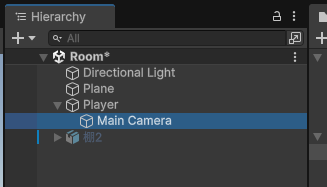
By making MainCamera a child of Player, the camera will automatically follow the player when they move.
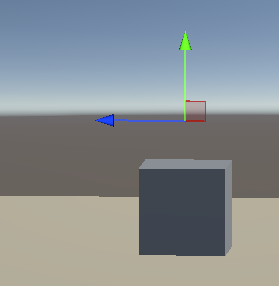
As mentioned above, the camera tracks the player, so move the camera to the same X and Z coordinates as the player. Position the Y coordinate slightly above the player.
The cube at the bottom is the Player, and the arrow points to the camera.
Add a script to the player
I did the following for the Player:
using UnityEngine;

public class player : MonoBehaviour
{
    private float speed = 5.0f;

    void Update()
    {
        float mx = Input.GetAxis("Mouse X");////mouse movement
        if (Mathf.Abs(mx) > 0.001f)
        {
            transform.RotateAround(transform.position, Vector3.up, mx); ////update POV
        }

        if (Input.GetMouseButton(0))//////////repeat while press
        {
            float zMovement = speed * Time.deltaTime;
            transform.Translate(0, 0, zMovement);/////forward
        }
    }
}
Addition of physics calculations
Player Settings
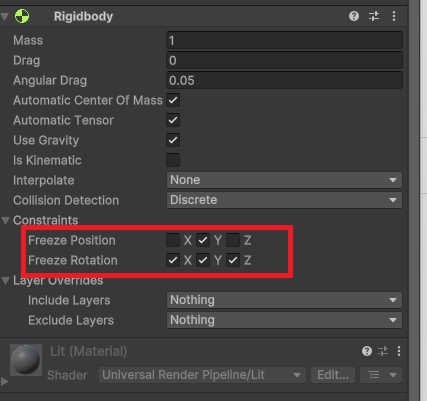
Add a RigidBody component from Player’s AddComponent and change the settings as follows.
Checking the Y option under ‘Freeze Position’ will prevent the bouncing behavior that occurs when an object collides with another object. (This is not mandatory.)
Checking the X, Y, and Z options under ‘Freeze Rotation’ will stop the rotation behavior when colliding with an object. If you don’t check this, the camera will also rotate when you collide, so it’s better to check it.
Wall and obstacle settings
Here, we will use the object created in Blender as described in the following article as a wall.
However, to simplify the physics calculations, I unchecked ‘Generate Collider’.

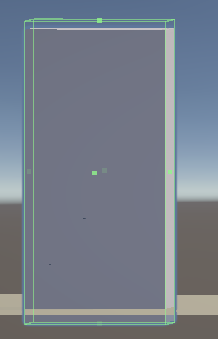
Select the added object in the Hierarchy view and add a Box Collider.
Click EditCollier.
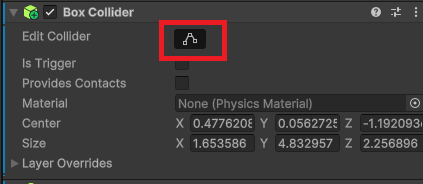
A green frame will appear in the Scene view as shown below; adjust it to fit the object.
(Note that although a blue border appears when you select an object, this is a different area.)
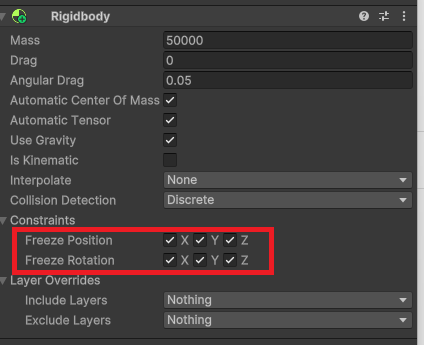
Next, add a Rigidbody and check all the boxes for Freeze Position and Freeze Rotation as shown below.
This way, even if you collide with it, the wall won’t move.
Websites I used as references

コメント