
Things I want to do
The article below shows how to use Gemini with NodeJS.
However, since it lacks a GUI and is completely impractical, we will implement a GUI.

review
The HTML created last time is as follows:
<!DOCTYPE html>
<html>
 <head>
  <meta charset="UTF-8">
  <title>Gemini</title>
 </head>
 <body>
    <script type="module" src="main.js"></script>
 </body>
</html>
Similarly, the JavaScript is as follows:
let api_key = "Your API key"

import { GoogleGenerativeAI } from "@google/generative-ai";

const genAI = new GoogleGenerativeAI(api_key);
const model = genAI.getGenerativeModel({ model: "gemini-1.5-flash" });

const prompt = "GoogleのAIのGeminiに関して教えて。";

const result = await model.generateContent(prompt);
console.log(result.response.text());implementation
Input implementation
Add the following to the HTML tag to enable text input.
    <div>
        <label>INPUT: </label>
        <input type="text" id="input" size="100" />
    </div>
    <div>
        <button id="run">Execute</button>
    </div>

In JavaScript, we’ll make sure that when the ‘Run’ button created above is clicked, a prompt is passed to the AI.
import { GoogleGenerativeAI } from "@google/generative-ai";

//initialize
const genAI = new GoogleGenerativeAI(api_key);
const model = genAI.getGenerativeModel({ model: "gemini-1.5-flash" });

//make rely for button click
async function generateReply(){
    const prompt = document.getElementById("input").value;
    const result = await model.generateContent(prompt);
    console.log(result.response.text());
}

//register callback
document.getElementById("run").onclick = () => generateReply();
Output implementation
Add the following to the HTML tag to create an area to display the output.
    <div id = output>
    </div>
JavaScript will display the reply created above in the area shown.
    //console.log(result.response.text());  //delete
    document.getElementById("output").innerHTML = (result.response.text());  //add
Markdown support
The implementation so far works at a basic level, but the output is not formatted as shown below.
This is because the output is in Markdown format.

Here, we’ll use the `unified` library to convert it to HTML and display it.
Installing Unified
Run the following command to install unified and the modules you will be using.
npm install unified
npm install remark-parse
npm install remark-rehype
npm install rehype-stringify
Convert from Markdown to HTML
Import the necessary modules.
import { unified } from 'unified';
import remarkParse from 'remark-parse'
import remark2rehype from 'remark-rehype'
import rehypeStringify from 'rehype-stringify';
The following `result.response.text()`, written in Markdown, is converted to HTML using `processor.processSync`.
    const result = await model.generateContent(prompt);

    //add start
    const processor = unified().use(remarkParse).use(remark2rehype).use(rehypeStringify); //definge process parse markdown → convert to HTM → build
    const html = processor.processSync(result.response.text());//convert
    //add end

    //document.getElementById("output").innerHTML = (result.response.text());  //delete
document.getElementById("output").innerHTML = (html.value);//addResult
I was able to input text, get output from Gemini, and display it.
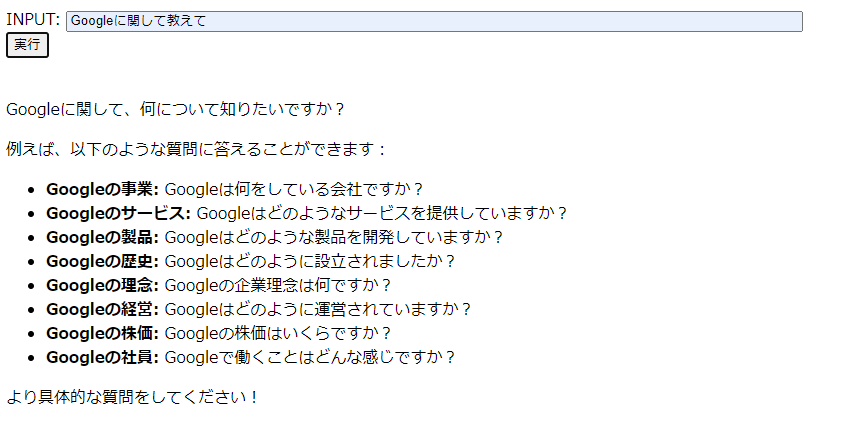
All Code
index.tml
<!DOCTYPE html>
<html>
 <head>
  <meta charset="UTF-8">
  <title>Gemini</title>
 </head>
 <body>
    <div>
        <label>INPUT: </label>
        <input type="text" id="input" size="100" />
    </div>
    <div>
        <button id="run">実行</button>
    </div>
    <script type="module" src="main.js"></script>
    <br>
    <div id = output>
    </div>
 </body>
</html>
main.js
let api_key = "Your API key"

import { GoogleGenerativeAI } from "@google/generative-ai";
import { unified } from 'unified';
import remarkParse from 'remark-parse'
import remark2rehype from 'remark-rehype'
import rehypeStringify from 'rehype-stringify';

const genAI = new GoogleGenerativeAI(api_key);
const model = genAI.getGenerativeModel({ model: "gemini-1.5-flash" });

async function generateReply(){
    const prompt = document.getElementById("input").value;
    const result = await model.generateContent(prompt);

    const processor = unified().use(remarkParse).use(remark2rehype).use(rehypeStringify);
    const html = processor.processSync(result.response.text());

    document.getElementById("output").innerHTML = (html.value);
}

document.getElementById("run").onclick = () => generateReply();
Websites I used as references
コメント