
Things I want to do
This debugs a WebView (HTML, JavaScript) displayed on Android.
To be more precise, we will do the following:
- Debugging the mobile-friendly web page you created
- Debug web pages created or modified within the app.
debug
Prepare
Android side preparation
Enable developer options. (See below for instructions on how to enable developer options.)

Enable USB debugging in the developer options.
Windows settings
Install adb (Android Studio).
(I don’t have a PC with adb installed, so I’m not sure if it’s necessary, but the official documentation mentions that it’s done via adb.)
Install Chrome.
Code modification
I will modify the code for the Android app.
However, this is unnecessary if you only want to view the logs. You can also check the Chrome logs on Android.
Insert the following code. If it’s just experimental code, you can put it in MainActivity’s OnCreate method.
if ( Build.VERSION.SDK_INT >= Build.VERSION_CODES.KITKAT ) {
    WebView.setWebContentsDebuggingEnabled(true);
}
We are performing a version check, but if the environment to be used is decided…
Version check is not required.
execution
Display the webpage you want to debug on your Android device.
Enter the following URL in the Chrome address bar on Windows.
chrome://inspect/A dialog box will appear on your Android device asking you to allow USB debugging. Click ‘Allow.’ (This may appear multiple times, but just click ‘Allow’ each time.)
The connected Android devices and apps with WebView will be listed as shown below.
It may take some time for it to appear (about a minute?).
If it still doesn’t appear, try re-entering the URL.
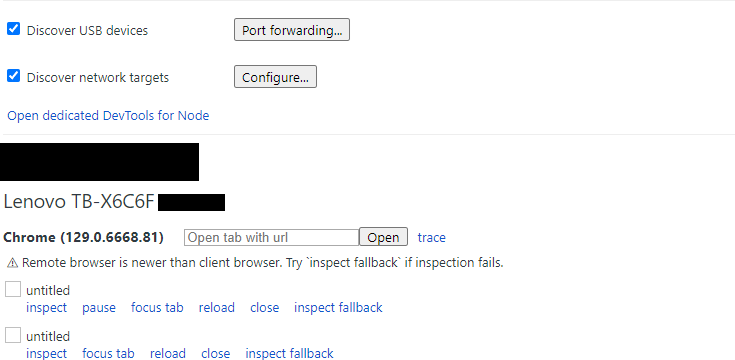
Find the page you want to debug and click ‘inspect’.
If DevTools is displayed as shown below, it was successful.
If you call `WebView.setWebContentsDebuggingEnabled(true);` within your app, the same screen as on Android will be displayed on the left, and you can manipulate elements. Conversely, if you do not call `WebView.setWebContentsDebuggingEnabled(true);`, the screen will not be displayed, and you will not be able to manipulate elements. (Logs will still be visible.)
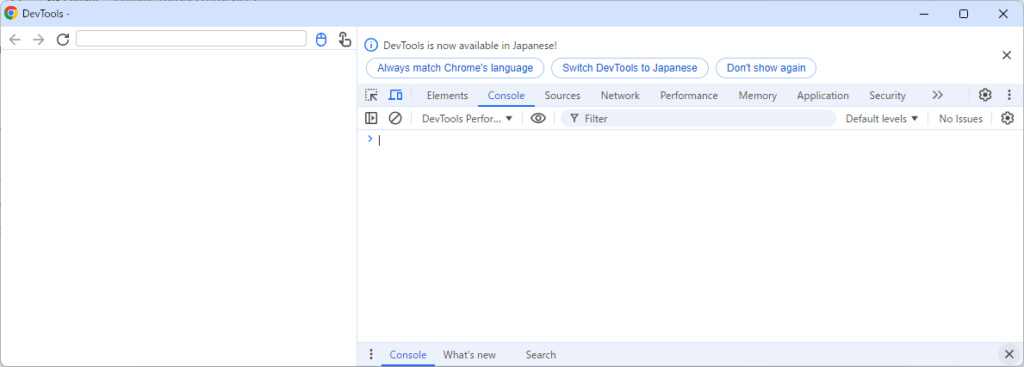
Result
It is now possible to debug applications displayed on Android.
コメント