
Notice
This article is intended for older versions of Blender, such as 3.X.
If you are installing on Blender 4.2, please refer to the following page.

Things I want to do
This opens a 3D model file (PMD) for MMD (MikuMikuDance) in Blender.
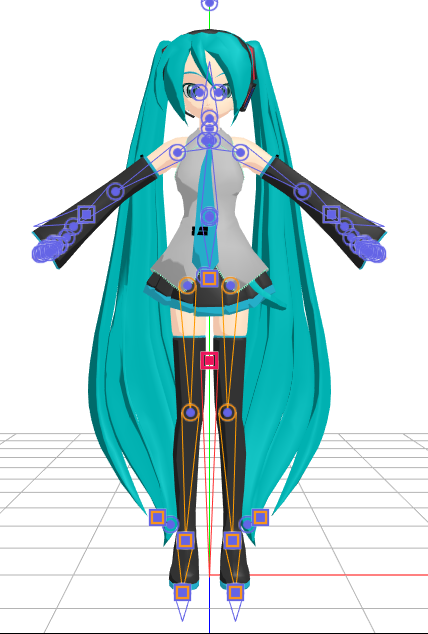
I will proceed using Animasa’s Hatsune Miku model as an example.
Installing Blender add-ons
Download mmd_tools
Download the Blender add-on mmd_tools from the following page.
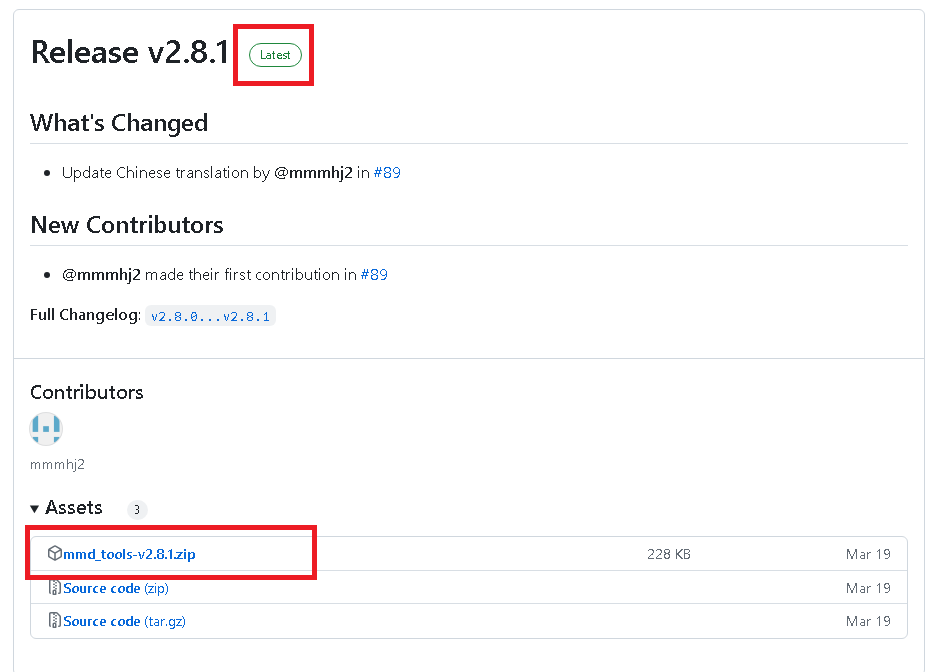
Multiple versions will be displayed, but find the version labeled ‘Latest’ as shown in the image below, and click the Zip file in Assets to download it.
Installing mmd_tools
Place the downloaded files in the following folderThawI will.
*The username is the username you use to log in to Windows. 3.4 is the Blender version. Please change it to match your version.
C:\Users\Username\AppData\Roaming\Blender Foundation\Blender\3.4\scripts\addons
Enabling mmd_tools
Next, enable the mmd_tools that you installed in Blender.
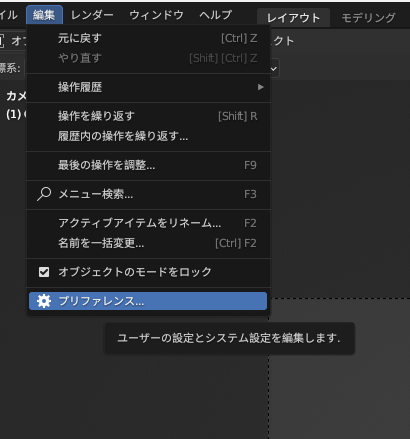
Launch Blender and select ‘Preferences’ from the ‘Edit’ menu.
Select ‘Add-ons’ from the left side of the displayed GUI, and enter ‘MMD’ in the search box on the right.
Check the box when mmd_tools is displayed.
If it doesn’t appear, please check if you’ve extracted it to the correct folder and if you haven’t left it as a zip file.
Alternatively, click ‘Install’ in the upper right corner of the GUI and select the downloaded Zip file directly.
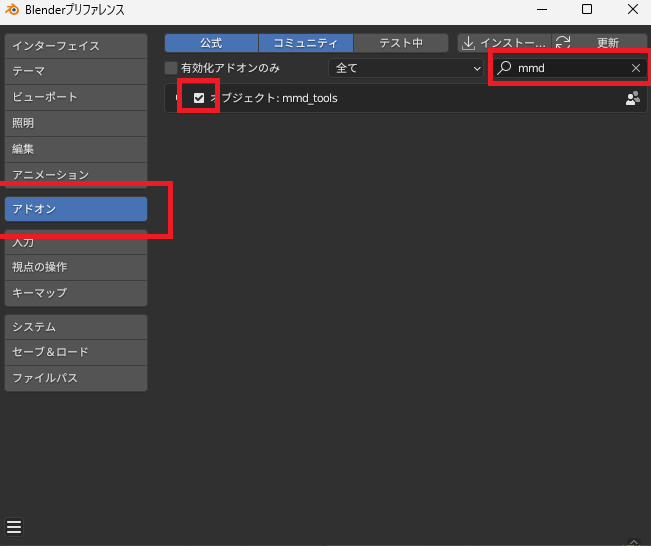
Once you check mmd_tools, the installation of the necessary add-ons will be complete.
Reading PMD files
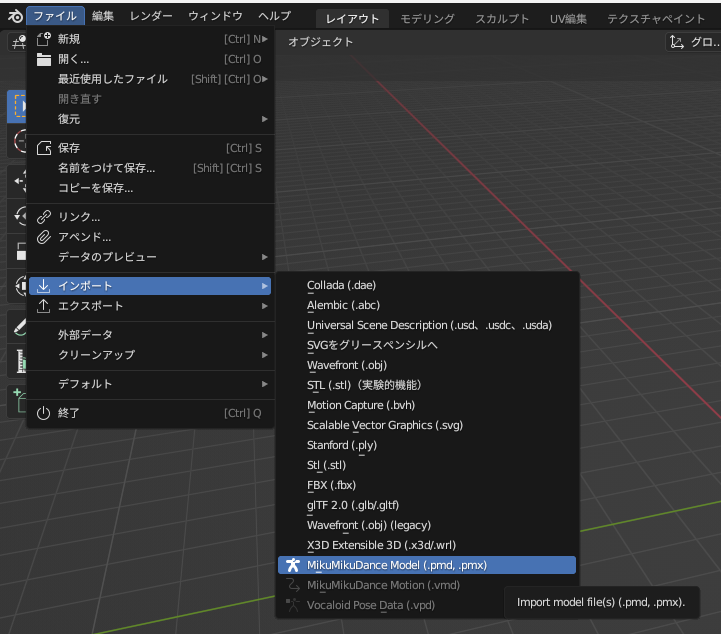
After installing the aforementioned add-on, the following will be added to the ‘File’ menu → ‘Import’ → ‘MikuMikuDance Model (pmd, pmx)’ options.
Result
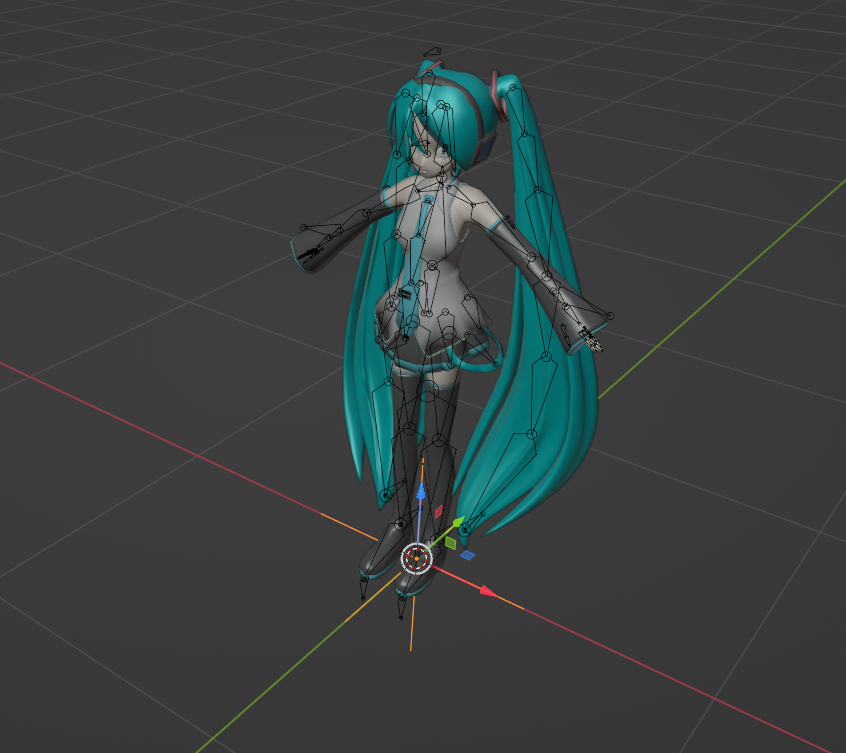
By selecting the Hatsune Miku.pmd file included with MMD from ‘MikuMikuDance Model (pmd, pmx)’, I was able to display Hatsune Miku in Blender.
コメント