
Things I want to do
Adjust the rendering area while checking the 3D image.
For movement/rotation, please refer to the page below.

Environment
Blender:3.4.1
Adjustments based on camera view and object data properties
Change camera perspective
You can change the camera view by pressing the 0 key on the numeric keypad.
When you press the 0 key
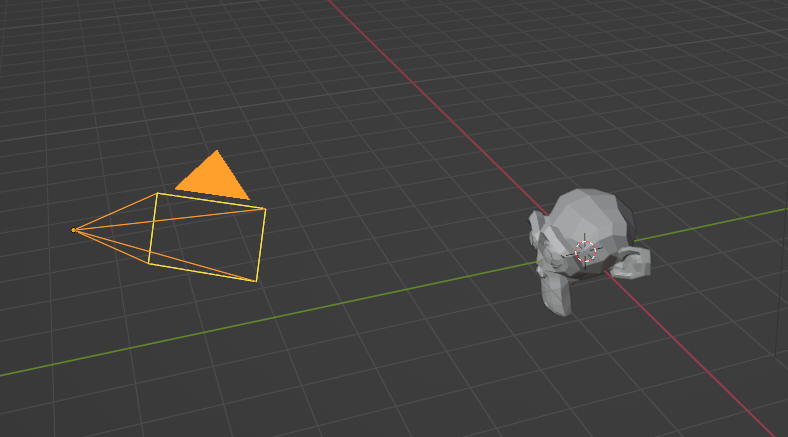
The above display
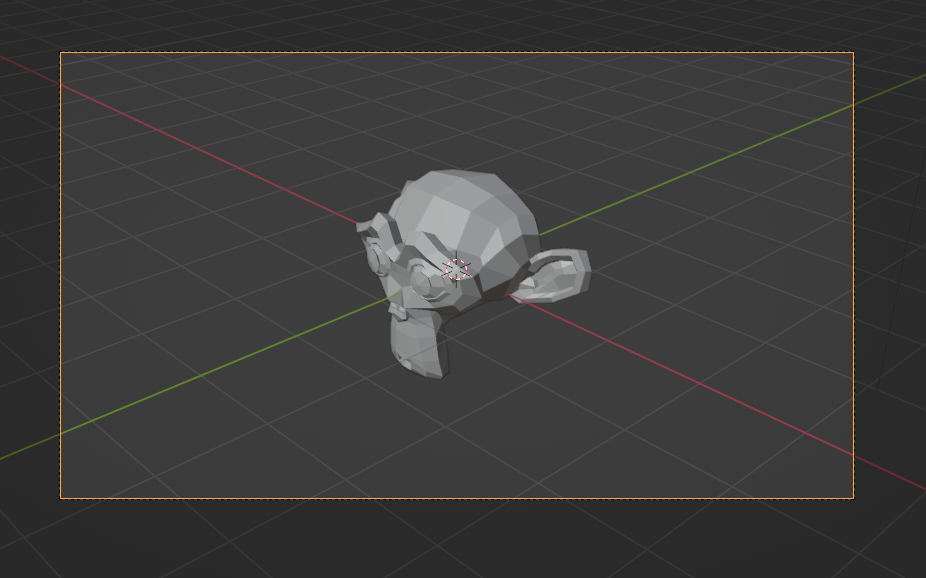
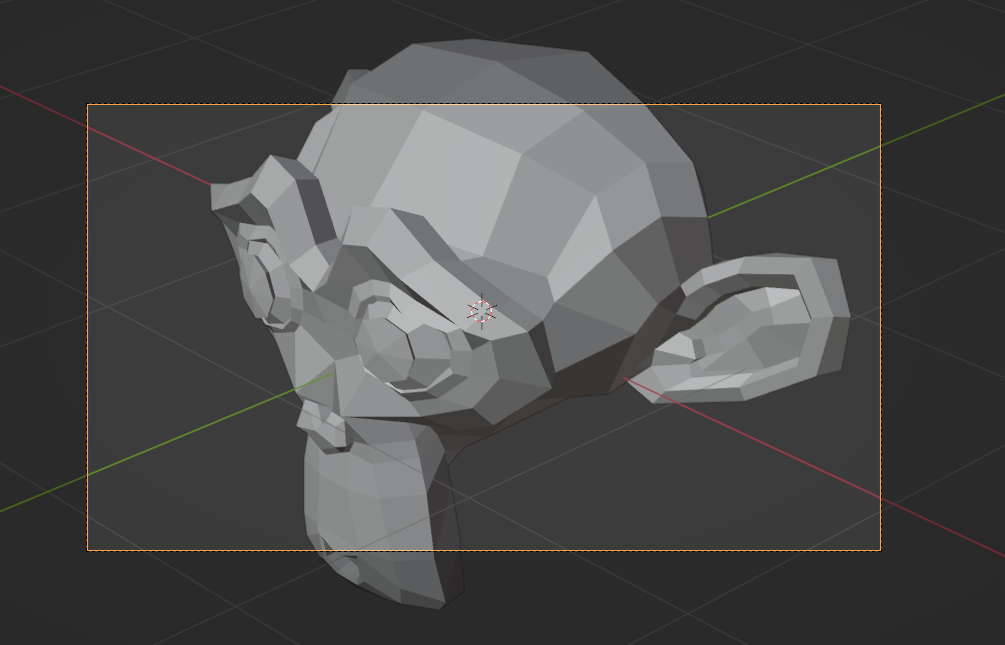
It will be displayed as shown here.
The area within the orange frame is the rendering area.
Adjusting the rendering area
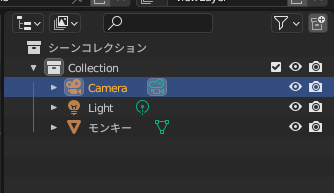
Select the camera object.
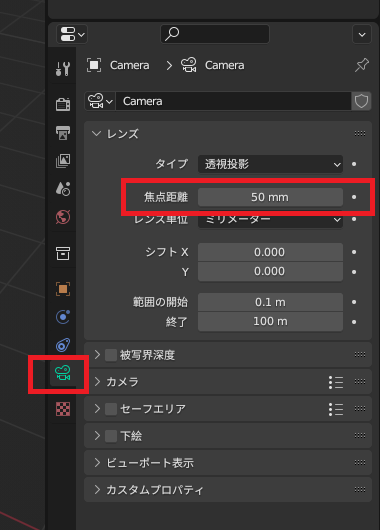
Select the object data property and change the focal length by dragging (or entering a value).
You can make the same adjustment by changing the ‘lens unit’ from ‘millimeters’ to ‘field of view’.
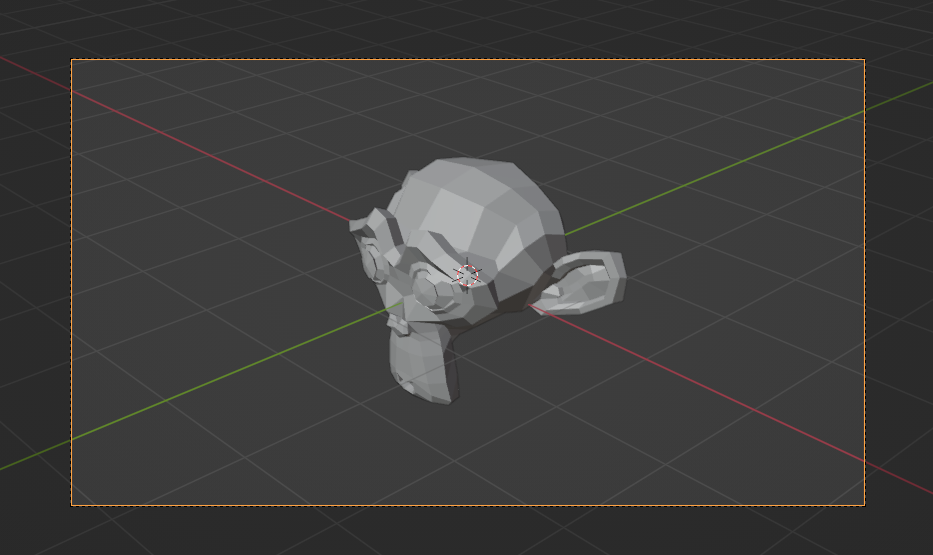
Result
You can enlarge/reduce objects within the rendering area (orange frame) as shown below.
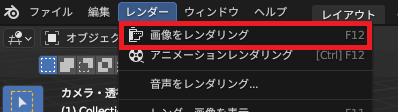
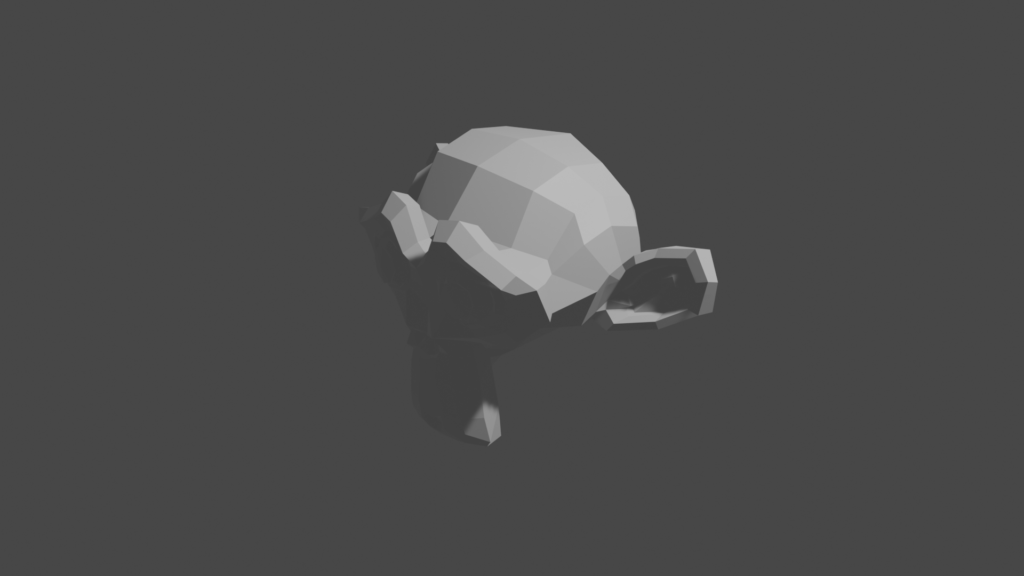
When you select ‘Render Image’ from the ‘Render’ menu, the area within the orange frame will be rendered.
コメント