
Things I want to do
Use the template’s (saved) Prompt/NegativePrompt in StableDiffusionWebUiForge.
(It seems that StableDiffusionWebUI is not the same.)
Specific example
Save templates for Prompt/NegativePrompts that use the same Prompt/NegativePrompt repeatedly, making them easy to adapt.
We’ll make it easier to use by deleting or rearranging existing templates.
Basic usage
GUI
The template GUI is located below.

Using a template
Click the triangle below to select your preferred template.
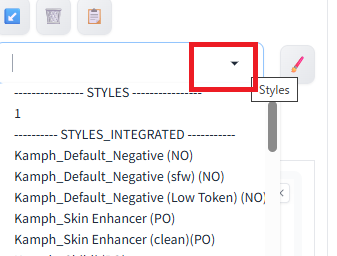
The selected template will appear in the list.
The prompt will not be updated, but the input count will be updated as shown below.
(The template selected in this example only has NegativePrompt.)
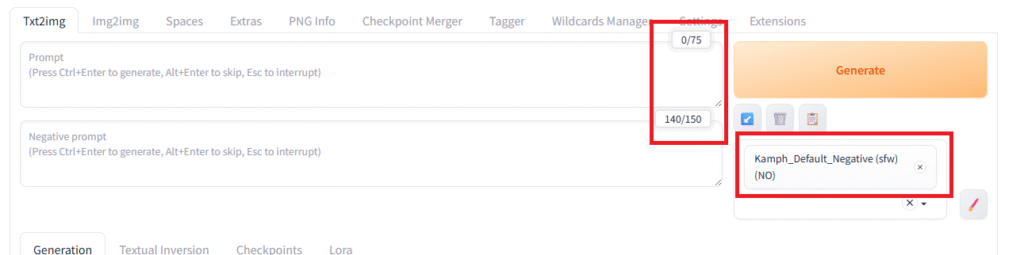
In the state shown above, clicking ‘Generate’ will generate an image with the template applied (you can add additional Prompt/NegativePrompts).
Check the contents of the template.
With a template selected, you can display the actual prompt being used by clicking the rightmost icon in the template GUI.
(The template selected in this example only has NegativePrompt.)

Create/edit/delete templates
Create/edit via GUI
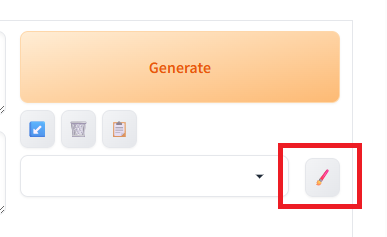
Click the pen icon on the right side of the template.
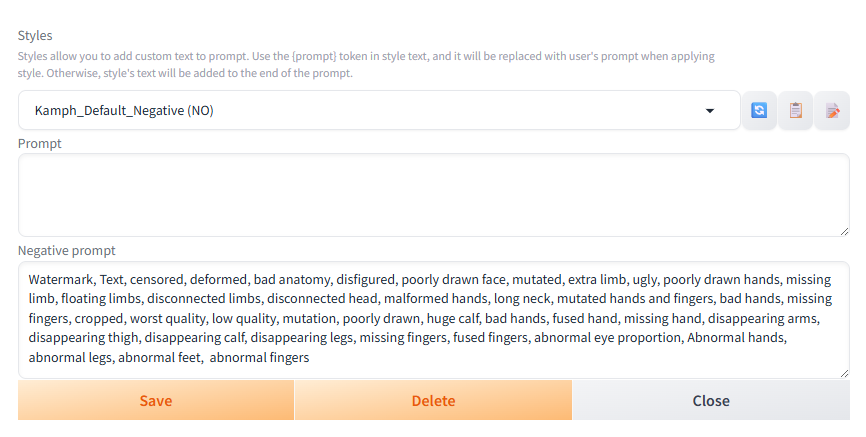
You can edit or delete the template by selecting an existing template name from the dropdown menu at the top.
You can create a new template by directly entering a template name that does not already exist.
Direct creation/editing
The pre-installed templates are stored in webui\styles_integrated.csv, and user-defined templates are stored in webui\styles.csv. (Initially, styles.csv may not exist. Creating a new template will create the file.)
You can update the templates by directly editing these files.
You can also rearrange the order to place your most frequently used templates at the top.
If you edit while StableDiffusion is running, you will need to restart it for the changes to take effect.
*Please be sure to back up your data before editing.
While CSV files can be edited using text editors like Notepad, we recommend using Excel or LibreOffice Calc.
As indicated in the CSV file, the first column is the name, the second column is the prompt, and the third column is the negative prompt.

Result
I was able to use templates with StableDiffusion.

コメント