
Things I want to do
Simply renaming files managed by TortoiseGit (deleting the original file and creating a new one) breaks the relationship between the original and modified files, making them difficult to manage.
This article explains how to rename files in TortoiseGit and how to check the file history before renaming.
Rename file
Right-click the file whose name you want to rename.
Click ‘Check other options’.
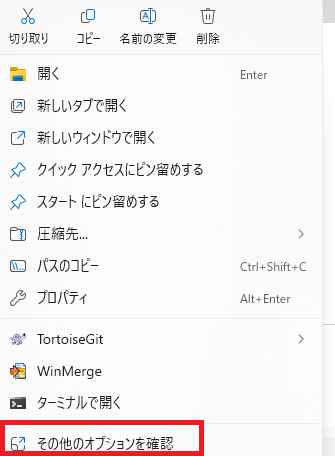
Depending on your operating system and settings, the menu at the bottom may be displayed instead of the menu at the top.
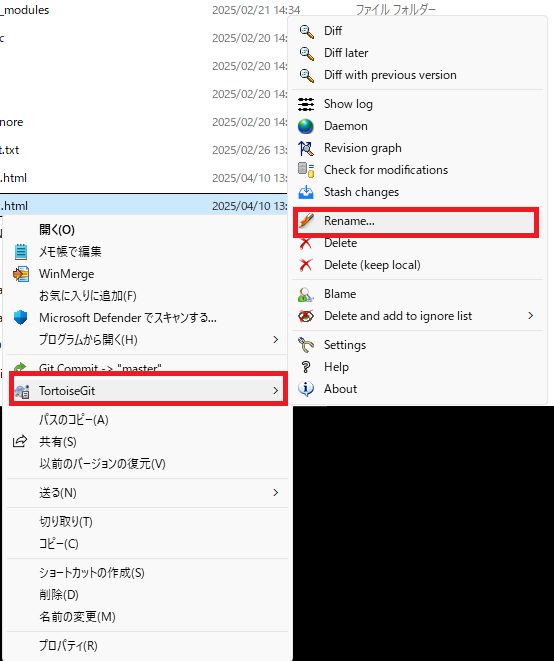
The menu will reappear, so go to ‘TortoiseGit’ → ‘Rename…’
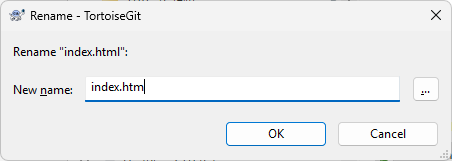
The following dialog box will appear. Enter the new name and click OK.
(As an example, index.html has been changed to index.htm.)
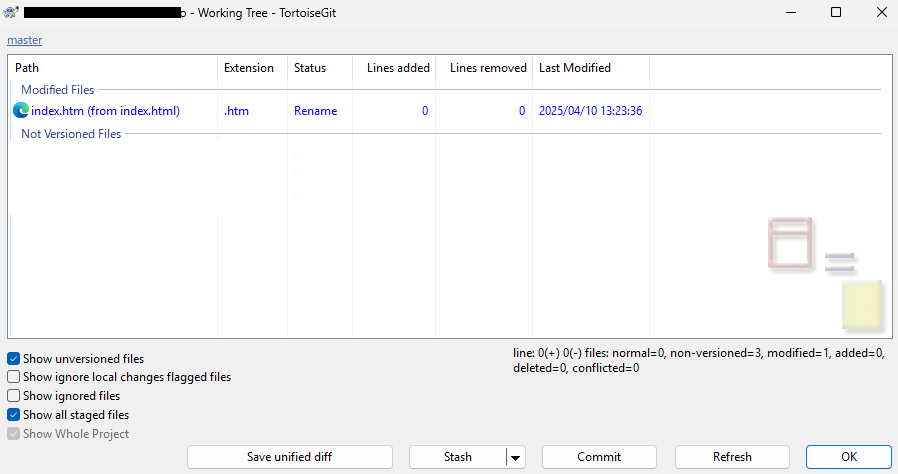
A diff reveals that it is registered as ‘Rename’ as shown below.
Check the history before renaming the file.
You can check the file’s change history by right-clicking on the renamed file and selecting ‘TortoiseGit’ → ‘Show log’.
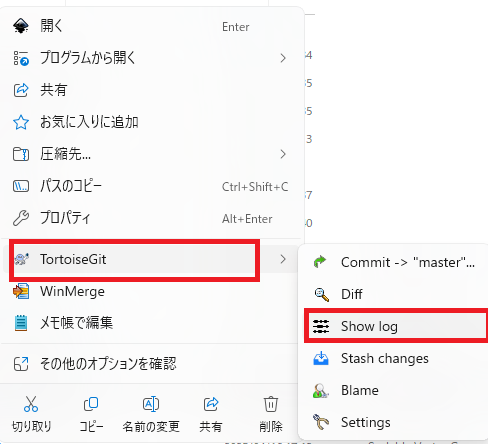
However, it is not possible to directly check the file history before the file name was changed.
To verify, select the commit where you renamed the file in the window, and then locate the modified file in the bottom of the window.
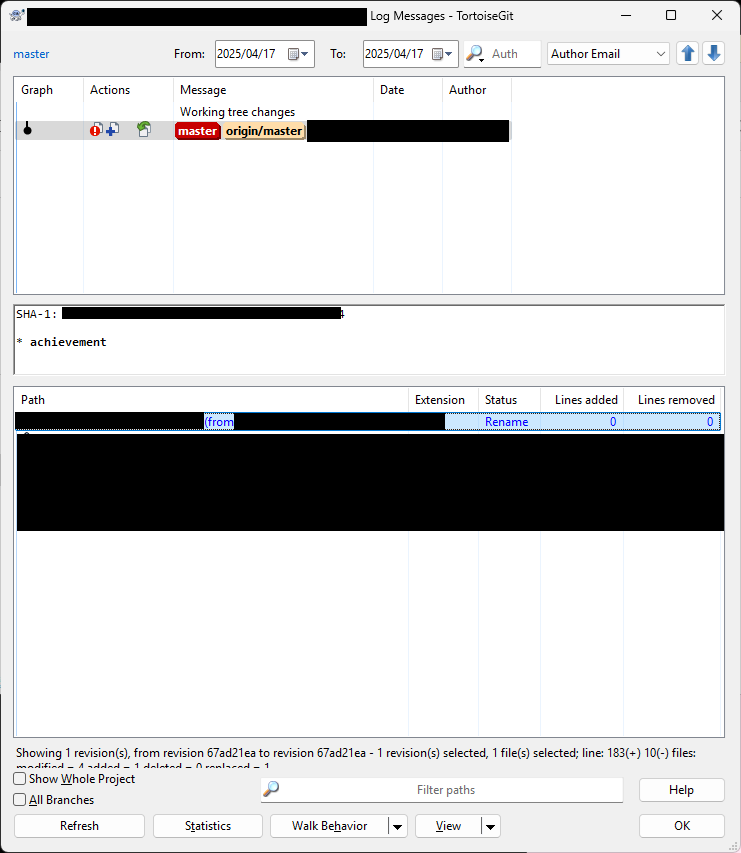
Right-click the modified file and click ‘Show log before rename/copy’.

You can check the file history before renaming using the steps above.
Result
I was able to register the file name change in Git and then check the change history of the original file from the modified file.

コメント