
Things I want to do
Stable Diffusion Forge typically requires an Nvidia GPU (such as GeForce).
The previous page showed how to create an environment that runs on a CPU, but this article will show how to create an environment that runs on an AMD GPU.

Even with an onboard GPU, creation time has been reduced.
Regarding Flux. 1
One of the advantages of Forge is that it can use Flux. 1, but the method described in this article, plus the method for creating Flux. 1 images with Forge, did not allow me to create images using Flux. 1.
(Although I was able to create the image by modifying the code, it didn’t turn out to be a decent image, so I’ll omit the details of the process here.)
Environment setup
download
The following page will open.
Scroll down the page to find the ‘Installing Forge’ section, and click on the recommended binary to download it.
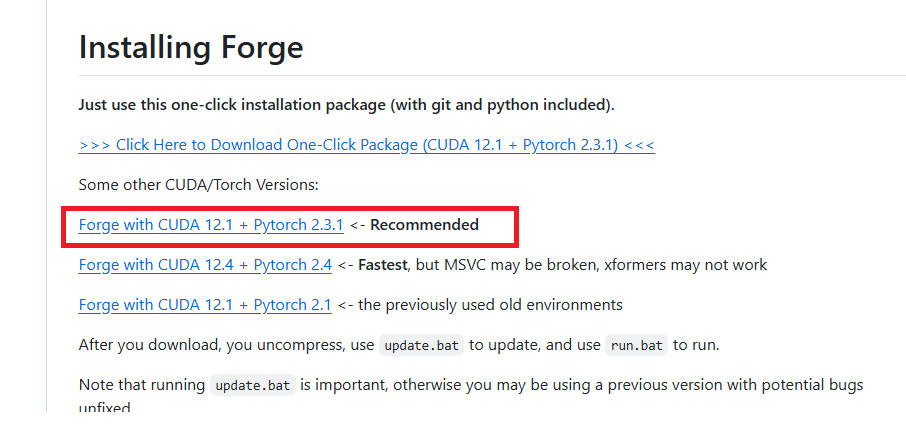
Development
Extract the downloaded zip file to a folder of your choice.
bat modification
Open the following file with a text editor such as Notepad.
webui¥webui-user.bat
Modify the following line.
set COMMANDLINE_ARGS=After correction
set COMMANDLINE_ARGS=--directml 0 --skip-torch-cuda-test --always-no-vram --always-offload-from-vram --no-half --opt-sub-quad-attention --upcast-sampling --opt-sdp-attention --all-in-fp16
This completes the environment setup.
–directml 0 –skip-torch-cuda-test is required, but please adjust the others as needed.
execution
Run the run.bat file located in the extracted folder.
If you encounter the following error during execution (processing will continue), execute the `git config~` command displayed. This error may reappear. If it appears again, execute the command again. (The folder path in the argument should have changed.)

If your browser launches and the GUI is displayed as shown below, then it was successful.

Result
I was able to create the image by entering the prompts in the displayed GUI and clicking Generate.
コメント