
Things I want to do
I’ll control OBS using JavaScript.
Points to note
The method described in this article has two major problems. Please check them before proceeding.
Note 1: It cannot be used with a regular browser.
It cannot be used with browsers outside of OBS (such as Chrome or Firefox).
To use it, you need to display the page you created in the browser source within OBS.
Note 2: There are limitations to what can be done.
The capabilities are quite limited. You can move between scenes, move between transactions, record, and start and stop streaming, but you cannot change the volume or show/hide sources.
For more details, please refer to the following page, which contains a list of available events and features.
OBS settings
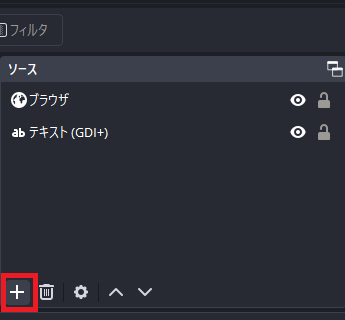
Click the ‘+’ in the OBS Sources window.
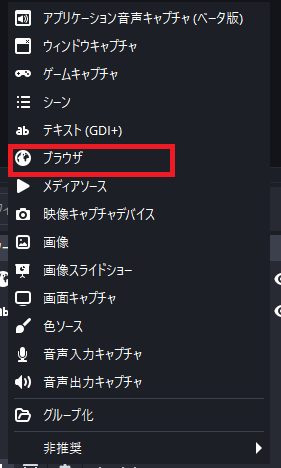
Select a browser and create the browser source.
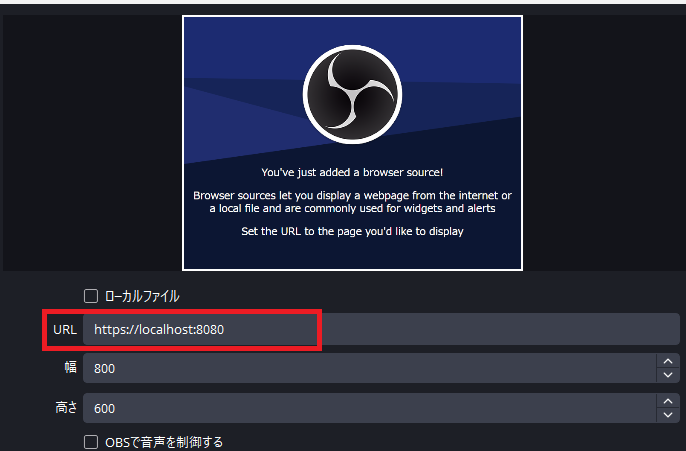
Set the URL to display the URL. (If you don’t want to set up a local server, check ‘Local File’ and select a local file (work not confirmed)).
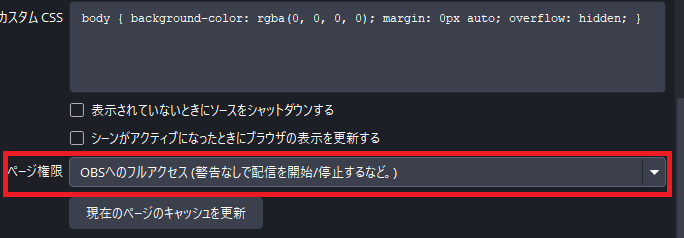
We will modify it to align with the functionality for creating page permissions.
The example below grants the strongest authority.
That completes the OBS settings.
implementation
This guide will show you how to implement this using JavaScript with Node.js.
Create a project in Node.js and run the following command. (This may not be necessary for JavaScript implementations, but it is recommended as it allows you to check definitions and other details.)
npm install --save-dev @types/obs-studioWith these steps, you should now be able to access window.obsstudio from the page displayed in the OBS settings.
example
Display version
window.obsstudio.pluginVersionRecording started
window.obsstudio.startRecording()
Debugging methods
Run the following batch file. (If your OBS path or browser path is different, or if you have port issues, please modify it accordingly.)
cd /d "C:\Program Files\obs-studio\bin\64bit\"
start obs64.exe  --remote-debugging-port=5555 --remote-allow-origins=*
"C:\Program Files\Google\Chrome\Application\chrome.exe"  http://localhost:5555
Do not use the above batch file if you are using OBS normally without debugging.
A list of web pages displayed in OBS will appear in Chrome, so select the page you want to debug.
The page and Chrome’s developer tools will appear.
Websites I used as references

コメント