
Things I want to do
On the following page, I used SpeechSynthesis, a basic JavaScript function, to perform text-to-speech, but the pronunciation was not very good.

Therefore, we will use AivisSpeech, which has a clearer pronunciation, to read the text aloud.
premise
This time, it’s a local web application (http://localhost/This assumes access from [a specific location]. File:// cannot be used. We will use [a specific example] as an example. This is due to a CORS policy issue. It seems that access from other PCs may be possible by changing the settings, but I haven’t tested this.
Environment
AivisSpeech Engine version 1.0.0
Starting the AivisSpeech-Engine (server)
If you haven’t installed AivisSpeech, please refer to the following page for instructions on how to install it.
Start the server by executing the following command from the command line.
C:\Program Files\AivisSpeech\AivisSpeech-Engine¥run.exeIf you perform a user-specific installation, the path will be as follows:
\AppData\Local\Programs\AivisSpeech\AivisSpeech-Engine\run.exeThe initial download will take some time as the model will be downloaded. (Even if you have launched AivisSpeech before, if this is the first time you are launching AivisSpeech-Engine directly, a download will occur.)
[2025/01/27 09:02:52] INFO:     Started server process [19536]
[2025/01/27 09:02:52] INFO:     Waiting for application startup.
[2025/01/27 09:02:52] INFO:     Application startup complete.
[2025/01/27 09:02:52] INFO:     Uvicorn running on http://localhost:10101 (Press CTRL+C to quit)
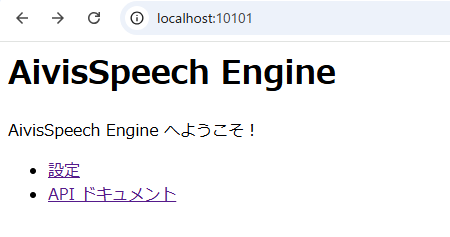
If the above log appears, use a browser such as Chrome.http://localhost:10101Open it.
If the following is displayed, the server is running correctly.
Obtaining SpeakerID
Access the following URL.
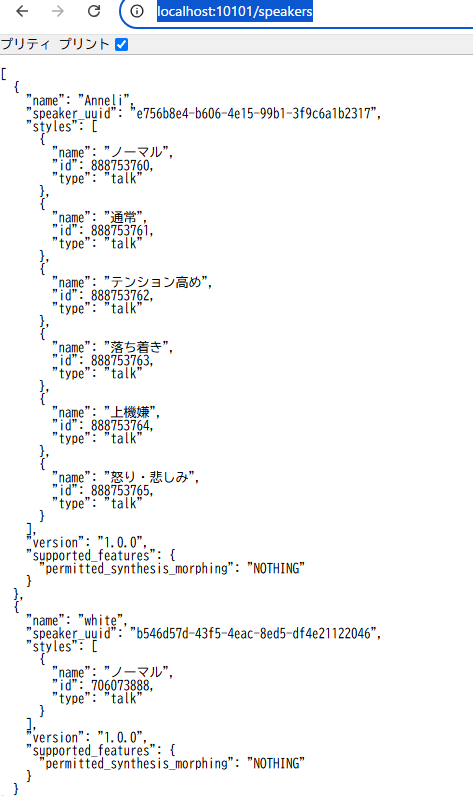
http://localhost:10101/speakersI’ll check ‘Pretty Print’ to make it easier to see.
Note down the ID of the setting you want to use (note that this is not the speaker_uuid).
Here, we will use 888753760 to use Anneli’s normal version.
code
We will create HTML and JS files. However, since requests to AivisSpeech-Engine from File:// will fail, you will need to start a local server using Node.js or LiveServer.
See below for instructions on how to use LiveServer.
index.html
<!doctype html>
<html lang="en">

<head>
  <meta charset="UTF-8" />
  <title>TEST</title>
</head>

<body>
  <input type="text" id="text" class="txt" value="読み上げます" required><br><br>
  <input type="button" value="読み上げ" id="execute"><br><br>
  <script type="module" src="/src/main.js"></script>
</body>

</html>
In HTML, I created a text box to be read aloud and a read-aloud button.
main.js(Replace 888753760 in the code with the value obtained when retrieving the SpeakerID.)
document.getElementById("execute").onclick = function (event) {
  readText(document.getElementById("text").value)
};

function readText(text) {
  const xhr = new XMLHttpRequest();
  const url = 'http://localhost:10101/audio_query?speaker=888753760&text=' + text;
  xhr.open("POST", url, false);
  xhr.send();
  const res_str = xhr.responseText;

  const xhr_synth = new XMLHttpRequest();
  const url_synth = 'http://localhost:10101/synthesis?speaker=888753760';
  xhr_synth.open("POST", url_synth);
  xhr_synth.setRequestHeader("Content-Type", "application/json");
  xhr_synth.responseType = "arraybuffer";
  xhr_synth.onreadystatechange = async () => {
    if (xhr_synth.readyState === XMLHttpRequest.DONE && xhr_synth.status === 200) {
      const context = new AudioContext();
      const audioBuffer = await (new Promise((res, rej) => {
        context.decodeAudioData(xhr_synth.response, res, rej);
      }));
      const source = context.createBufferSource();
      source.buffer = audioBuffer;
      source.connect(context.destination);
      source.start(0);
    }
  }
  xhr_synth.send(res_str);
}
The general flow is as follows:
The information to be read aloud is sent to the server via a POST request to http://localhost:10101/audio_query.
  const xhr = new XMLHttpRequest();
  const url = 'http://localhost:10101/audio_query?speaker=888753760&text=' + text;
  xhr.open("POST", url, false);
  xhr.send();
  const res_str = xhr.responseText;
Using the JSON obtained from the above request, a WAV file will be created by sending a POST request to http://localhost:10101/synthesis.
  const xhr_synth = new XMLHttpRequest();
  const url_synth = 'http://localhost:10101/synthesis?speaker=888753760';
  xhr_synth.open("POST", url_synth);
  xhr_synth.setRequestHeader("Content-Type", "application/json");
  xhr_synth.responseType = "arraybuffer";
  xhr_synth.send(res_str);
Once the WAV file has finished downloading, play it using the following code.
      const context = new AudioContext();
      const audioBuffer = await (new Promise((res, rej) => {
        context.decodeAudioData(xhr_synth.response, res, rej);
      }));
      const source = context.createBufferSource();
      source.buffer = audioBuffer;
      source.connect(context.destination);
      source.start(0);
}Result
I was able to use AivisSpeech to have it read aloud.
コメント