
Things I want to do
Phaser 3 displays the collision detection of the physics engine (Arcade) in the game.
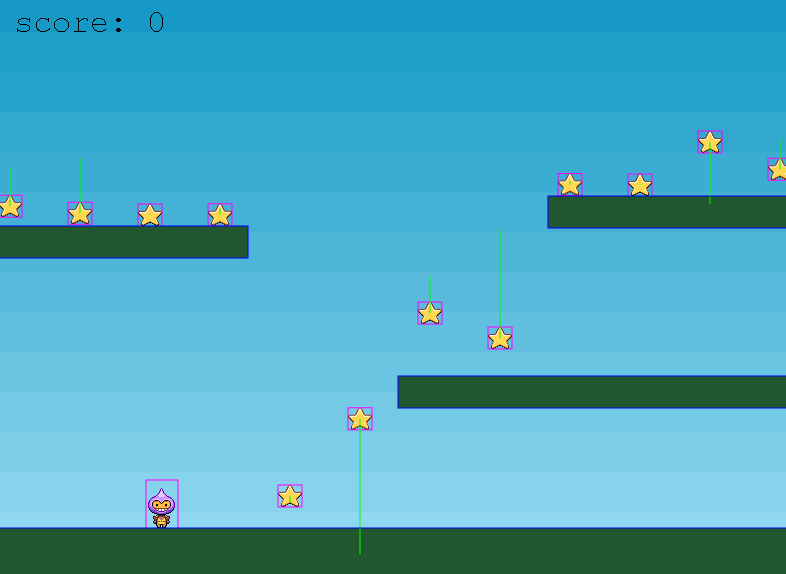
When researching Phaser 3, you might see screenshots where squares are displayed around characters and items; this will show you how to display those squares.
We will use Part 10 of the Phaser 3 tutorial as an example.
Please refer to the following page for information on downloading the code and comments.

Physics engine settings
Add `debug: true` to the `physics` property of the Config passed to the Game class, as shown below.
    physics: {
        default: 'arcade',
        arcade: {
            gravity: { y: 300 },
            debug: true
        }
},Let’s try using Phaser3 Turtorial.
The tutorial configuration is as follows:
var config = {
    type: Phaser.AUTO,
    width: 800,
    height: 600,
    physics: {
        default: 'arcade',
        arcade: {
            gravity: { y: 300 },
            debug: false
        }
    },
    scene: {
        preload: preload,
        create: create,
        update: update
    }
};
We will correct this as follows:
var config = {
    type: Phaser.AUTO,
    width: 800,
    height: 600,
    physics: {
        default: 'arcade',
        arcade: {
            gravity: { y: 300 },
            debug: true         //////Change to True
        }
    },
    scene: {
        preload: preload,
        create: create,
        update: update
    }
};Result
Hit detection areas (purple frames) are now displayed for each individual item, as shown below.
(The green line indicates the item’s speed.)
コメント