
Things I want to do
Modify a specific page using a Chrome extension.
This does not edit files on the server; it is only effective on the PC where the extension is installed.
Environment
Chrome:112.0.5615.138
Regarding the extension manifest
Extension manifest: V3
Currently, many pages that appear in search results describe Chrome extensions using manifest Version 2 (V2).
V2 is scheduled to be discontinued in the future, so it is wise to use V3 whenever possible.
Some pages mention that V2 will be discontinued in January 2023 or June 2023, but this information is either incorrect or outdated. As of May 2023, there are no plans for discontinuation.
For more details, please refer to the following page.

Creating and applying extensions
Extension Overview
postscript
When creating a Chrome extension to modify a specific page, the extension should generally be designed to work as follows:
– When the page is displayed, any JavaScript will be executed automatically.
– The JavaScript code that is executed will perform the process of changing the displayed page.
Creating an extension
Folder structure
Create any folder (extension in this example), and then create a manifest.json file and any JavaScript file (sample.js in this example).
\---extension
        manifest.json
        sample.js
Creating manifest.json
For extensions that rewrite arbitrary pages, the minimum requirement for manifest.json is the following:
The manifest.json file is a declaration of what kind of extension you will be creating.
{
  "name": "Sample",
  "version": "1",
  "manifest_version": 3,
  "content_scripts": [
    {
      "matches": [ "https://blog.marunokan.com/*" ],
      "js": ["sample.js"]
    }
  ]
}
The meaning of each item is as follows:
| 項目名 | meaning |
| name | Name of the extension (optional) |
| version | Extension version (optional) |
| manifest_version | Fixed to manifest version 3. |
| content_scripts | Extension activation conditions Explained below |
The meaning of the contents within `content_scripts` is as follows:
| Item name | meaning |
| matches | The page to execute. Adding an asterisk (*) at the end will execute the command in subfolders as well. (* can also be used in the middle of the command.) |
| js | JavaScript files that run on the page specified by the `matches` command. |
In the example above…
”Sample”Version with the name”1”The manifest version”3”An extension that uses [this method].
Including subfolders”https://blog.marunokan.com/”on the page”sample.js”Execute this.
This is a declaration.
Creating a JavaScript file
Create the JavaScript file specified under ‘js’ in ‘content_scripts’. (In this example, it’s sample.js)
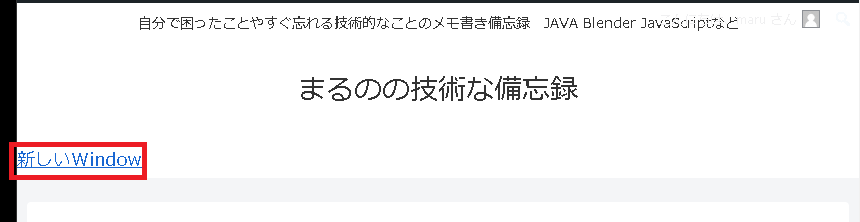
document.getElementById("header-in").innerHTML += "<div><a href='./' target='_blank'>新しいWindow<a/></div>";In this example, we created JavaScript that inserts a link to open a new window, as shown above.
Registering extensions
Register the extension you created in Chrome.
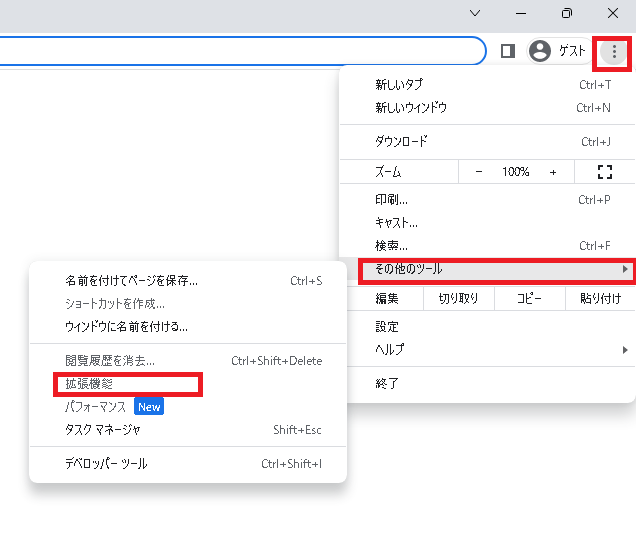
Open Chrome and select the ‘…’ next to your username as shown above → ‘More tools’ → ‘Extensions’.
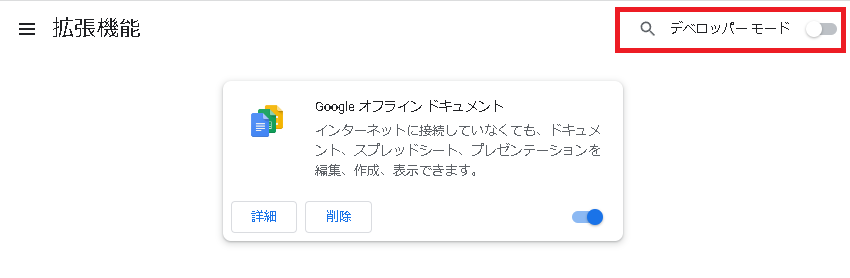
Turn on ‘Developer Mode’ in the upper right corner of the displayed screen.
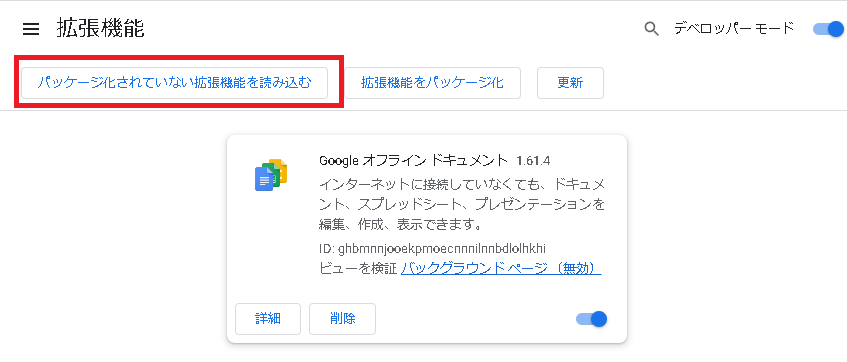
Once you turn on ‘Developer Mode,’ a button will be added to the top, so click ‘Load unpacked extension.’
The file selector will launch, and you will find the manifest.json file you created.folderWith the window open, click ‘Select Folder’.
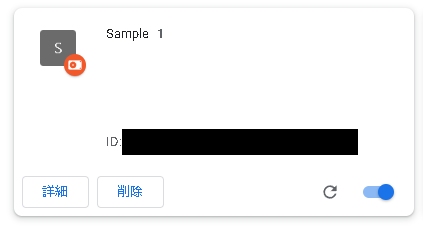
If the extension you created is displayed as shown above, then it was successful.
Result
When you access https://blog.marunokan.com/, a link to open https://blog.marunokan.com/ in a new window (tab) has been added, as shown below.
Websites I used as references



コメント