
Things I want to do
Create a complex tubular mesh
Environment
Blender:3.4.1
OS: Windows 11
Created from a curve
Create a curve
Create a curve.
There are several ways to create a curve, but any method is fine.
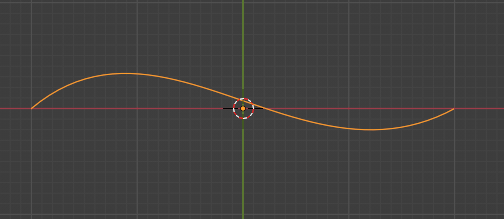
Turn the curve into a tube shape
With the curve in 3D selected, select the object data properties,
Change the ‘Depth’ in the ‘Geometry’ group → ‘Bevel’ group.
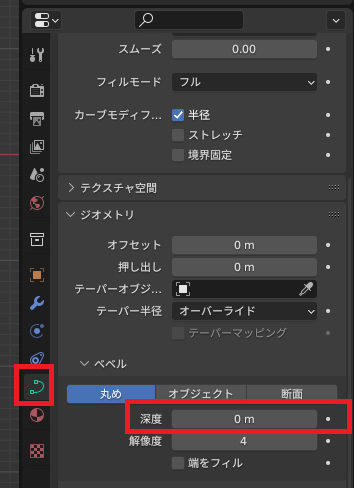
By changing the depth, the 3D curve will appear as a tube.
Increasing the depth value will make the tube wider.
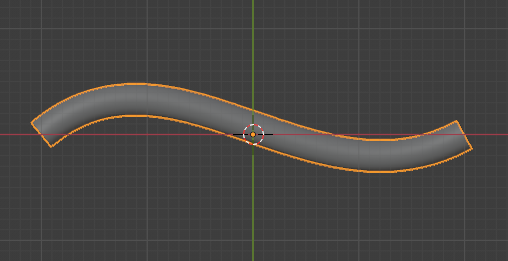
In this state, the ends are not filled in like a pipe. To fill the ends, check the ‘Fill ends’ option under ‘Depth’.
Convert to mesh
In Object Mode, select the target curve, right-click in the 3D display area, select ‘Convert,’ and then select Mesh.
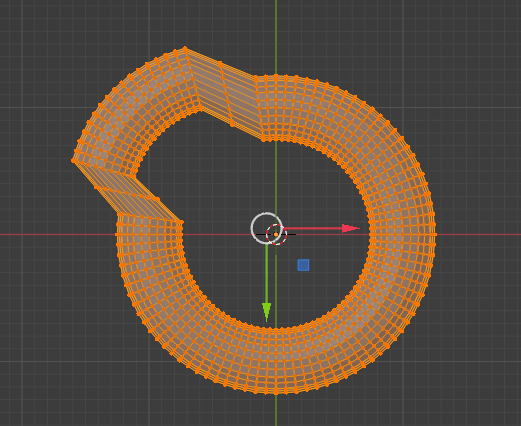
Result
We were able to create a complex tubular mesh as shown below.
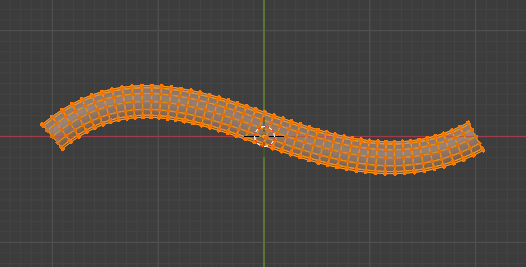
Once a curve is converted to a mesh, it cannot be edited as a curve.
If you plan to edit it as a curve, it is recommended that you make a copy.
Other options
Similar results can be achieved by deforming tori or cylinders, but creating smooth shapes is difficult.
Websites I used as references


コメント