
Things I want to do
We will bundle it using Vite.
Bundling is the process of combining multiple JavaScript files into a single JavaScript file.
While webpack is well-known, its configuration is difficult, and since development has ended, I’ll try using Vite.
Environment
node.js: v20.16.0
Quickly: 5.3.4
Project creation
Create a folder for your project and run the following command:
npm init vite@latestWhen prompted as shown below, enter ‘y’ and press Enter.
Need to install the following packages:
create-vite@5.4.0
Ok to proceed? (y)
Next, you will be asked for a project name, so enter your preferred name.
Project name: »Next, the framework selection screen will appear as shown below. Note that the text may be very difficult to read depending on your environment. You can select using the up/down arrow keys.
Vanilla is a standard JavaScript script without a framework.
? Select a framework: » - Use arrow-keys. Return to submit.
    Vanilla
    Vue
    React
    Preact
    Lit
    Svelte
    Solid
    Qwik
    Others
Next, the language selection screen will appear as shown below. Please note that the text may be very difficult to read depending on your environment. You can select a language using the up and down arrow keys.
 Select a variant: » - Use arrow-keys. Return to submit.
    TypeScript
    JavaScript
Next, we will move to the project we created.
cd project nameWe will install the necessary modules. (This will take some time.)
npm installWe will start the test server.
npm run devThe following will be displayed, so open the URL shown under ‘Local:’ in a browser such as Chrome.
  ➜  Local:   http://localhost:5173/
  ➜  Network: use --host to expose
  ➜  press h + enter to show help
Note that the port changes each time.
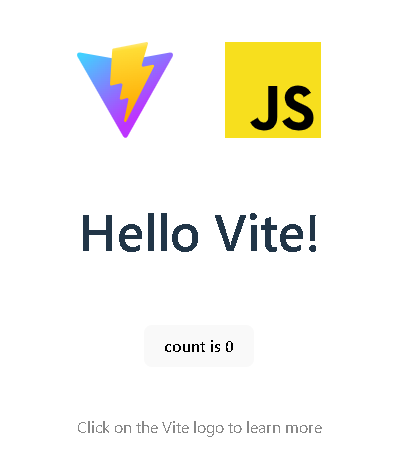
If the following page is displayed, it is a success. (Clicking ‘Count is XX’ will increase the count.)
Bundling has not yet been performed at this point.
bundle
Execute the following command:
npm run buildA `dist` folder is created within the project, and HTML, Javascript, and CSS files are bundled and created inside it.
(Javascript/CSS files are located in the dist/assets folder.)
Changing the folder structure
In the latest version of Vite, JavaScript files are now placed inside the Src folder.
Therefore, this step is unnecessary.
Participation from here on is optional.
To make the folder structure easier to understand and to facilitate debugging, we will perform the following steps.
Create a folder named ‘vite.config.js’ in the root of your solution and write the following code in it.
import { defineConfig } from "vite";

export default defineConfig({
  root: './src',
  base: "./",
  build: {
    outDir: '../dist',
  },
});
Modify the folder structure as follows:
(Move the files to be used for the page into the Src folder.)
プロジェクト
|   .gitignore
|   package.json
|   package-lock.json
|   vite.config.js
|
\---src
    |   style.css
    |   main.js
    |   javascript.svg
    |   index.html
    |   counter.js
    |
    +---public
            vite.svg
Run the following command to build the project.
npm run buildA `dist` folder will be created under the project directory and the bundled files will be placed there.
+---dist
|   |   vite.svg
|   |   index.html
|   |
|   \---assets
|           index-BfibREyH.css
|           index-BXSNOGaM.js
Additionally, by making the above settings (specifically the `base:` setting), the HTML file will be placed at the top of the folder instead of the server’s root directory.
Therefore, you can run `npm run dev` and then view the following page (where xxxx is the port number displayed) in your browser to see the bundled files.
http://localhost:xxxx/dist/It is also possible to display it by using the Visual Studio server.

If you do not configure `base:`, you will not be able to view bundled files. (This is because the path is from the server root, making it impossible to access individual files.)
Result
I was able to bundle (combine multiple files into one) using Vite.
Websites I used as references

コメント