
Things I want to do
I want to import an SVG created with Inkscape or similar software into Synfig Studio.
Why is it necessary?
Synfig Studio allows you to import SVG files via the menu File → Import.
However, Synfig Studio fails to correctly import boundaries (and other elements such as curves and Z order), as shown below.

Display in Inkscape

Display on Edge
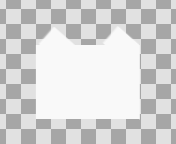
Display in Synfig Studio
The method described in this article will make the appearance of your work look similar in Inkscape and Synfig Studio.
However, the following information cannot be recovered.
– Gradient
Additionally, grouping information will be lost.
Please refer to the following article for instructions on how to transfer group information.

Save in Inkscape
Save and open
Display the target SVG in Inkscape.
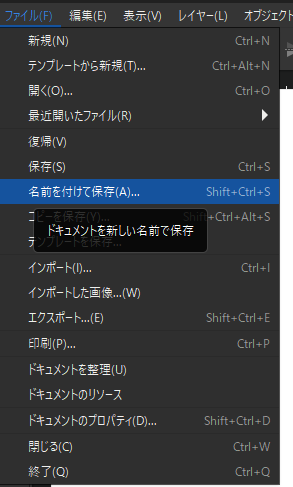
Select ‘Save As’ from the File menu.
Select Synfig animation as the save format.
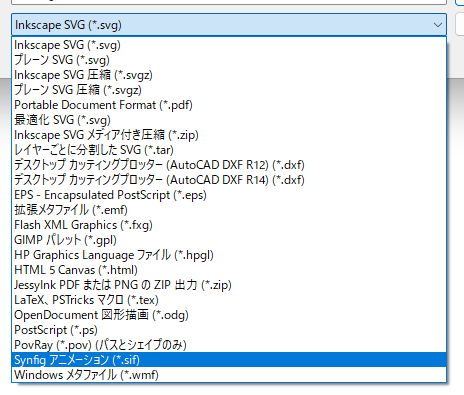
Choose a file name and save it.
The export function cannot save files for Synfig.
If an error is displayed and saving fails
If you see the following error, it is highly likely that your SVG contains Japanese characters.
Please replace the Japanese text with English. (These are mostly layer or object names.)
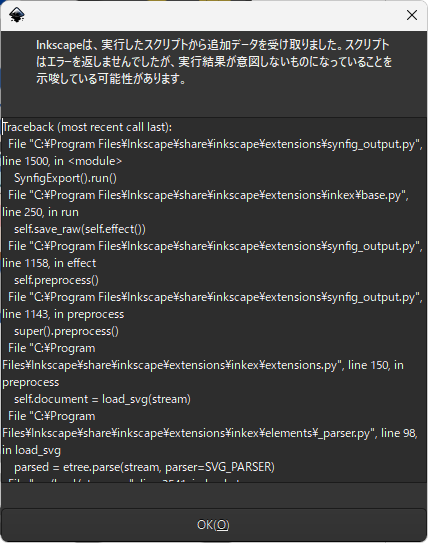
Traceback (most recent call last):
  File 'C:\Program Files\Inkscape\share\inkscape\extensions\synfig_output.py', line 1500, in
    SynfigExport().run()
  File 'C:\Program Files\Inkscape\share\inkscape\extensions\inkex\base.py', line 250, in run
    self.save_raw(self.effect())
  File 'C:\Program Files\Inkscape\share\inkscape\extensions\synfig_output.py', line 1158, in effect
    self.preprocess()
  File 'C:\Program Files\Inkscape\share\inkscape\extensions\synfig_output.py', line 1143, in preprocess
    super().preprocess()
  File 'C:\Program Files\Inkscape\share\inkscape\extensions\inkex\extensions.py', line 150, in preprocess
    self.document = load_svg(stream)
  File 'C:\Program Files\Inkscape\share\inkscape\extensions\inkex\elements\_parser.py', line 98, in load_svg
    parsed = etree.parse(stream, parser=SVG_PARSER)
  File 'src/lxml/etree.pyx', line 3541, in lxml.etree.parse
  File 'src/lxml/parser.pxi', line 1900, in lxml.etree._parseDocument
  File 'src/lxml/parser.pxi', line 1920, in lxml.etree._parseFilelikeDocument
  File 'src/lxml/parser.pxi', line 1814, in lxml.etree._parseDocFromFilelike
  File 'src/lxml/parser.pxi', line 1204, in lxml.etree._BaseParser._parseDocFromFilelike
  File 'src/lxml/parser.pxi', line 618, in lxml.etree._ParserContext._handleParseResultDoc
  File 'src/lxml/parser.pxi', line 724, in lxml.etree._handleParseResult
  File 'src/lxml/etree.pyx', line 334, in lxml.etree._ExceptionContext._raise_if_stored
  File 'src/lxml/parser.pxi', line 370, in lxml.etree._FileReaderContext.copyToBuffer
UnicodeDecodeError: cp932 codec cant decode byte 0x83 in position 4161: illegal multibyte sequence
Open it with Synfig.
The border is displayed, but the color is incorrect.
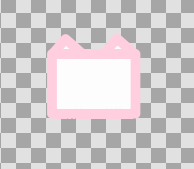
Color adjustment
Adjust the color using the following method.
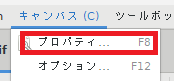
Select ‘Properties’ from the campus menu.
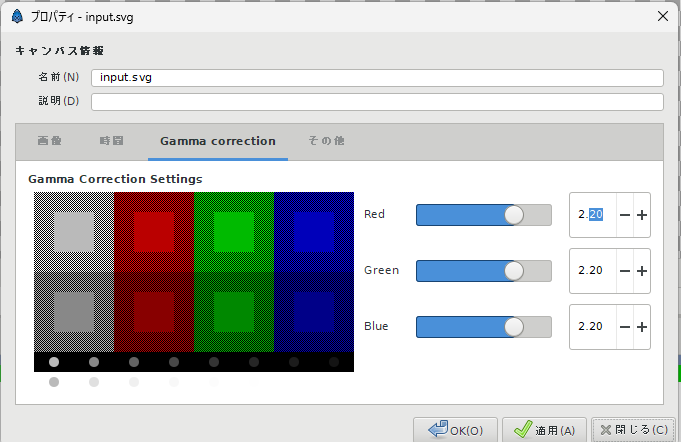
Display the ‘Gamma correction’ tab.
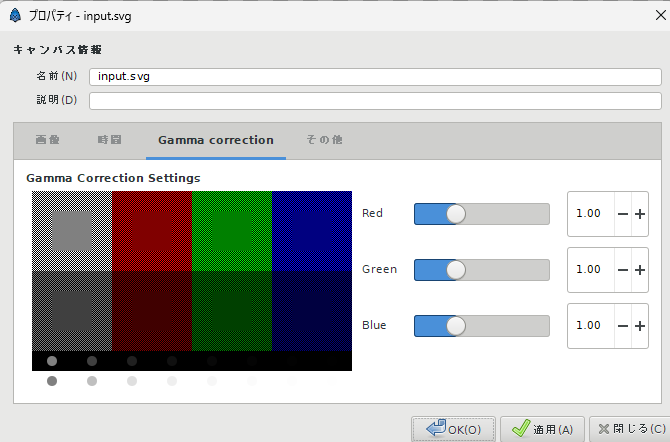
Set the Red, Green, and Blue values for ‘Gamma correction’ to 1.
Read multiple sif files
If you load an sif file created in another Synfig Studio after making the above settings, the image colors in the newly loaded sif file will revert to the brighter colors they were before the settings were changed.
To avoid this problem, open the sif file independently, change the color settings, and then save it.
Newly saved SIF files will display colors correctly even when imported into other SIF files.
Result
I was able to display the SVG in Synfig Studio.
Synfig Studio files (*.sif) cannot be opened with Inkscape.
It is recommended to save your work as an SVG file during the process, and only save it as a Synfig Studio file (*.sif) when you intend to use it in Synfig Studio.
コメント