
Things I want to do
I want to start a local server from Visual Studio Code and check the HTML.
Why is it necessary?
You can test the functionality by viewing the HTML file you created locally in a browser such as Chrome.
However, some functions cannot be executed from local files. Therefore, you need to start an HTTP server locally and read the created HTML file from the browser as a file on the server.
For example, if you try to load a module’s JavaScript from a local HTML file, you will see an error like the one below, and it will not work. (You can make it work using Chrome’s startup parameters, but this will reduce security.)

Using the Live Server plugin
install
Go to the following page and click Install.
Click Continue when the following message appears.
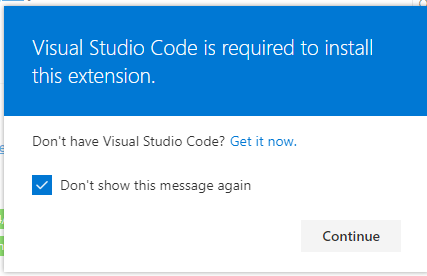
Next, you will be asked if you want to open Visual Studio Code, so click ‘Open Visual Studio Code’.
The Live Server installation screen will appear in Visual Studio Code, so click ‘install’ to proceed with the installation.
Starting the local server
After installing the Live Server, a ‘Go Live’ button will appear in the lower right corner of the screen.

From the top menu, select ‘File’ → ‘Open Folder…’ to open the folder containing the HTML file.

Click the ‘Go Live’ button.
The browser will open and the HTML file for the index of the opened folder will be displayed.
It seems that folders higher up than the folder opened with Open Folder (i.e., files specified with ../) cannot be read.
Result
I was able to start the local server from Visual Studio Code.
JavaScript, including modules, can also be loaded.

コメント