
Things I want to do
This program exports MMD models imported into Blender as glb files with textures, viewable with Threejs.
As explained in the article below, exporting as a glb file works well for many materials.

However, some things, like the eye shown below, cannot be displayed correctly unless the texture information is carried over.
Therefore, you need to export the material with textures.
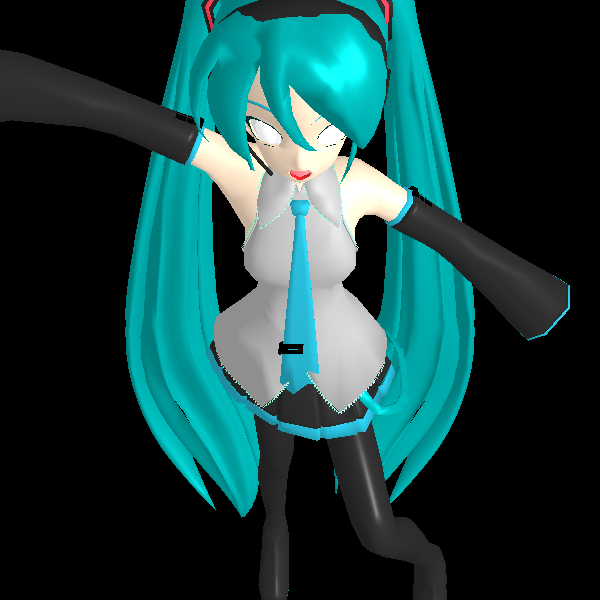
I will proceed using Animasa’s Hatsune Miku model as an example.
Material modification
Identifying the target material
We will change the settings of each material one by one to identify the target material.
(For example, we’ll look for a material that changes color and eye color.)
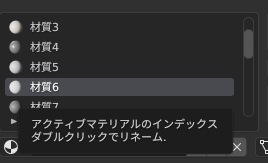
In this example, ‘Material 6’ is the material for the eye in question.
Checking texture files
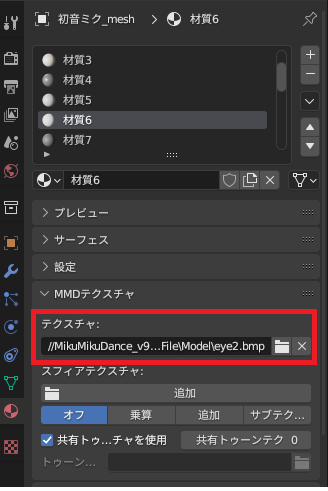
With the target material selected, check the files set in the textures under the ‘MMD Textures’ group.
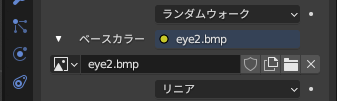
The example is eye2.bmp.
Changing material settings
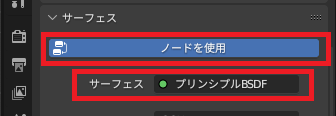
With the target material selected, select ‘Use Node’ (indicated in blue as shown in the image below), and then select ‘Principled BSDF’ for the surface.
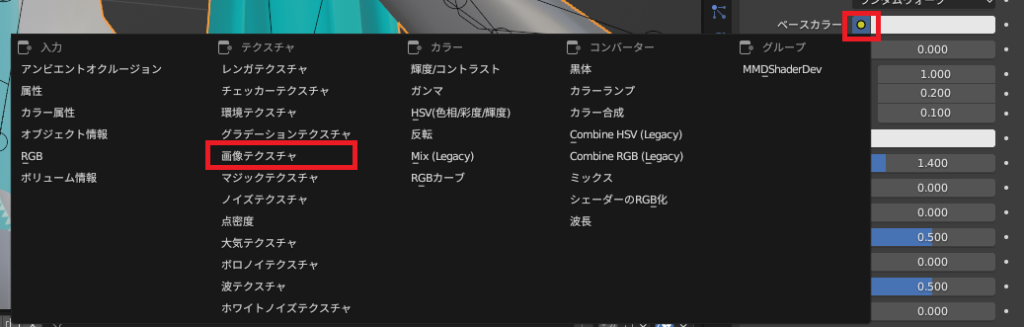
Click the circle to the right of the base color that appears below the modified surface.
Select ‘Image Texture’ from the displayed list.
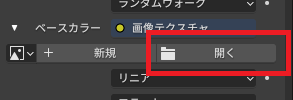
Select ‘Open’ under ‘Image Texture’ and then select the texture file you just checked. (eye2.bmp)
Once configured, it will be displayed as follows.
export
The export settings/method are the same as on the following page.
Result
I was able to display the texture along with the image using Threejs, as shown below.
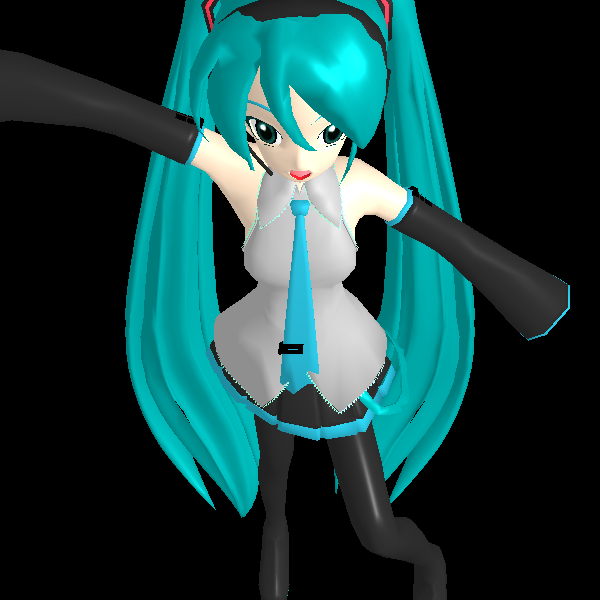
For instructions on how to display glb files using threejs, please refer to the following page.
コメント