
Things I want to do
We will create a web application using Teachable Machine, Google’s service for creating AI models.
This article will guide you through creating a web application that uses images captured by a PC’s camera for training, and whose behavior changes based on the camera’s input.
What you can do with Teachable Machine
Teachable Machine allows you to train AI and create models for free.
The AI takes images (specifically, regular images and poses) or audio data as input, and its output is a classification probability. (The classification does not need to be limited to two types.)
To give a simple example, we train a model using 100 images of cats and 100 images of dogs. Using this model, we output the probability of a dog being a dog and the probability of a cat being a cat for each input image. (The sum of the probabilities for dogs and cats will always be 1.)
Model creation
Go to the Teachable Machine page.
Click on ‘Try it out’ in the middle or upper right corner of the page.
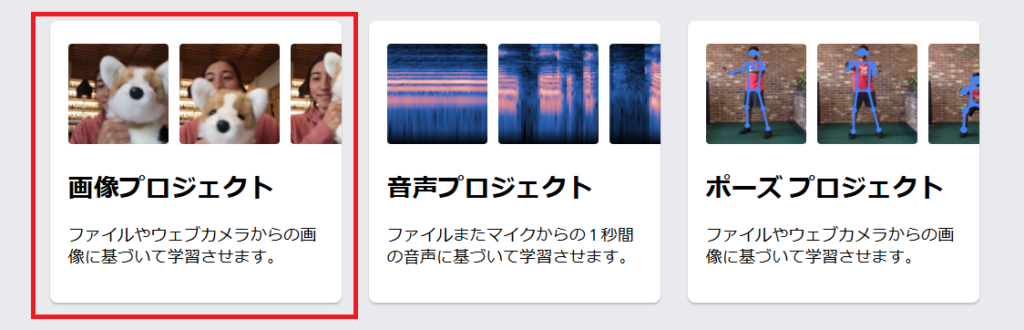
A new project page will appear, so click on ‘Image Project’.
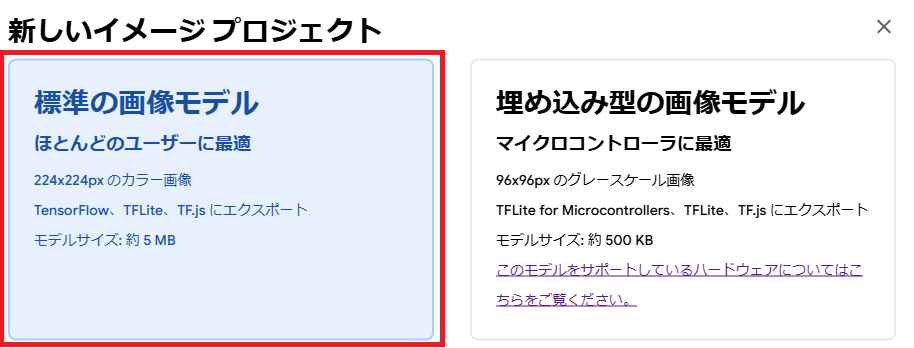
Next, select the [Standard Image Model].
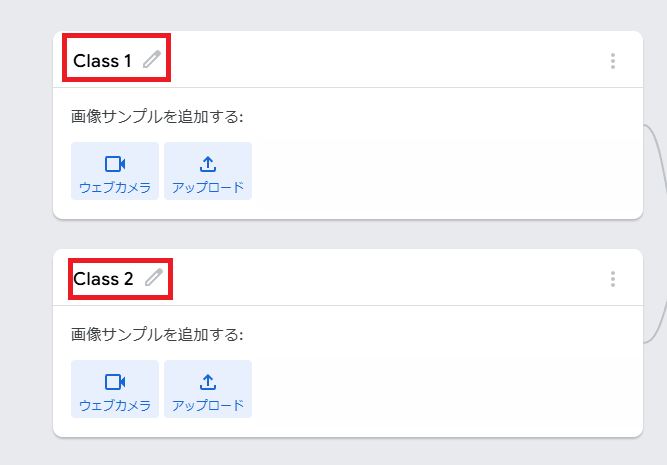
The model creation screen will appear. Click on the areas labeled 【Class1】 and 【Class2】 and change them to the names of the classes (groups) you want to distinguish.
Here, we’ve designated Class1 as ‘Open’ and Class2 as ‘Close’.
To prepare the training data for ‘Open’ and ‘Close,’ click the ‘Open’ webcam button. (Your browser will ask for access to your camera; please allow it.)
Once you’ve reviewed the preview and are ready, long-press ‘Press and hold to record.’ (Recording will only continue while you’re holding it down.) Try to move around a bit to avoid recording the same image repeatedly.
You can click on the saved images displayed on the right to preview and delete them.
Once you have set the training data for both classes, click the ‘Train Model’ button on the right.
In my environment, it took about one minute to complete with approximately 200 training images per class.
Once completed, a preview will appear on the right side. Check if the identification is done as intended, and if there are any problems, add training data and recreate the model.
If there are no problems, click the ‘Export Model’ button.
In the window that appears, click Tensorflow.js → Download → Download Model.
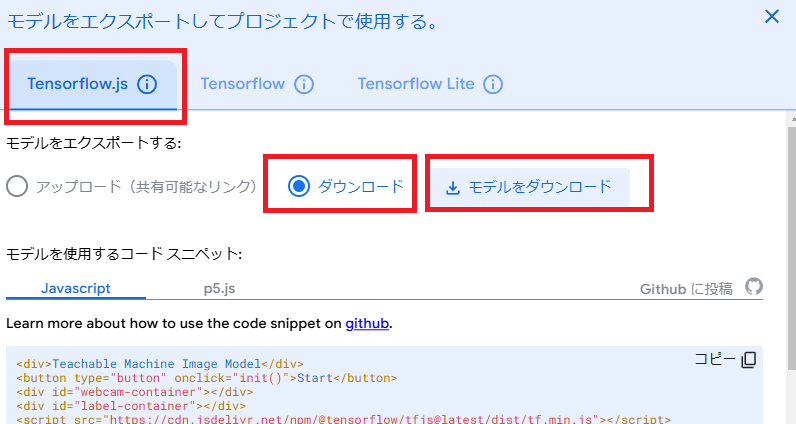
A file named tm-my-image-model.zip will be saved.
Please keep the tab open or save the code below in a text editor so you can use it later, as we will need it then. You can copy the code using the copy button in the upper right corner.
Creating HTML
Create file
Create an index.html file in your working folder.
The content is as follows:
<!DOCTYPE html>
<html>
 <head>
  <meta charset="UTF-8">
  <title>Teachable Machine example</title>
</head>
 <body>


</body>
</html>
Copy of model file
Create a folder named my_model in your working folder.
Unzip the contents of the tm-my-image-model.zip file you downloaded earlier and place it in the folder you created. (This file contains three files: metadata.json, model.json, and weights.bin.)
Copy of snippet
Copy the code that was displayed when you created the model.
Paste the copied code between the and tags in the index.html file you created.
When you open index.html, the following page will be displayed.
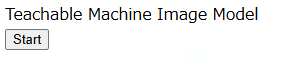
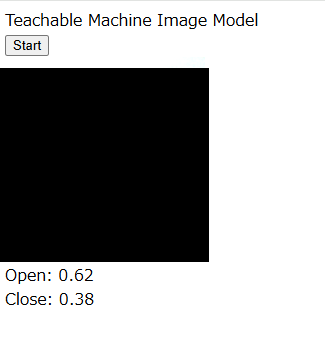
When you press Start, the camera image (black area) and the probabilities of Open and Close will be displayed as shown below.
When running the index.html file as a local file (by double-clicking or dragging and dropping index.html into a browser), the following error appears when clicking Start, and the file cannot be executed.

Please refer to the following article to start and run the server.

Result
I was able to create a web application that uses Teachable Machine to classify images.
コメント